
API keys and connected apps
Let your website, whitelist application system or another tool work with your server through an API key or a connected app.
On this page
Connected apps#
Some tools you may already use can connect to FiveStaff directly. Guildbase, for example, adds people to your allow list the moment their application is accepted.
Go to Settings → Connected apps, press Add an app, choose it and press Connect. Choose what it may do, then copy the connection code it shows into the other tool. The code is shown once.
Each connected app shows whether it is Working. Change what it can do and Disconnect are on each one.
API keys#
An API key lets something you built, such as a status widget on your website, act for your server.
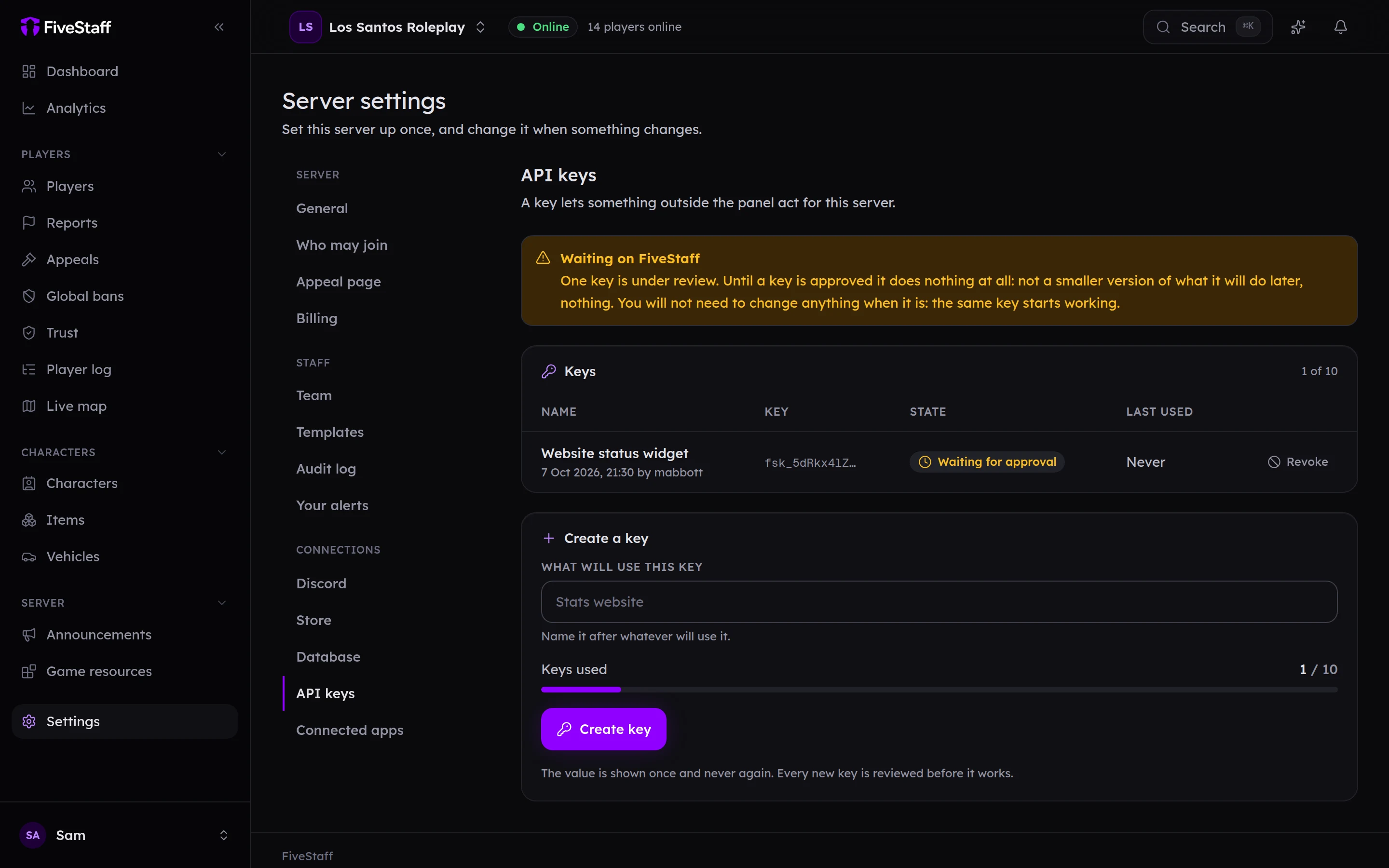
- Go to Settings → API keys.
- Under Create a key, say What will use this key.
- Press Create key and copy it. It is shown once and never again.
Every new key is checked by the FiveStaff team before it works. Until then it shows Waiting for approval and does nothing. You do not need to change anything once it is approved; the same key starts working.
A server can have up to ten keys. Revoke stops a key for good.
Only the owner can create keys. Managing them needs Manage API keys.