
Staff sits, timeouts and voice mutes
Take players aside for a staff sit, hold a rule-breaker in staff timeout for minutes of play, and mute a player's voice chat, all from the panel or in game.
On this page
Three tools for handling a player in game, each recorded in the audit log like any other action, whether you used the panel in a browser, the panel in game (/staff panel) or a command.
| What it does | Permission | |
|---|---|---|
| Staff sit | Takes you and up to sixteen players somewhere quiet, where nobody else on the server can see or hear you | Hold staff sits |
| Staff timeout | Holds a player at a set spot for a number of minutes of play, then lets them go | Put players in staff timeout and release them |
| Mute voice chat | Stops a player being heard on voice chat by anybody | Mute and unmute voice chat |
Turn them on for a role under Settings → Team → Roles.
Set the locations first#
Open Settings → In game. It is easiest from inside the game: type /staff panel, walk to the place you want, and press Use my position.
- Timeout spot: where a player in staff timeout is held.
- Release spot: where they go when their time is up. Somewhere public, like outside the police station, works well.
- Sit locations: up to ten rooms for staff sits. You can also hold a sit wherever you are standing, so these are optional.
Staff timeouts cannot be used until both the timeout spot and the release spot are set.
Staff sits#
A sit takes you and the players you choose to the sit location, apart from the rest of the server. Two sits can use the same location at once without seeing each other.
- Open Staff sits in the panel, in game with /staff panel.
- Choose the players and where to hold it.
- Press Start sit.
Everybody in the sit sees a banner at the top of their screen saying they are in a staff sit. You can bring somebody else in or send one player back while it runs. End sit takes everybody back to exactly where they were.
If a player leaves the server during a sit, they are shown as Left the server and are not put back in it when they return. What to do about it is up to you.
From the game chat#
Type /staff sit on its own and a window opens over the game:
- Tick the players you need to speak to. Everybody on the server is listed with the id beside their name, and you can search by either.
- Choose where: Where I am standing, or one of your saved sit locations.
- Press Start sit. Esc or Cancel closes it without starting anything.
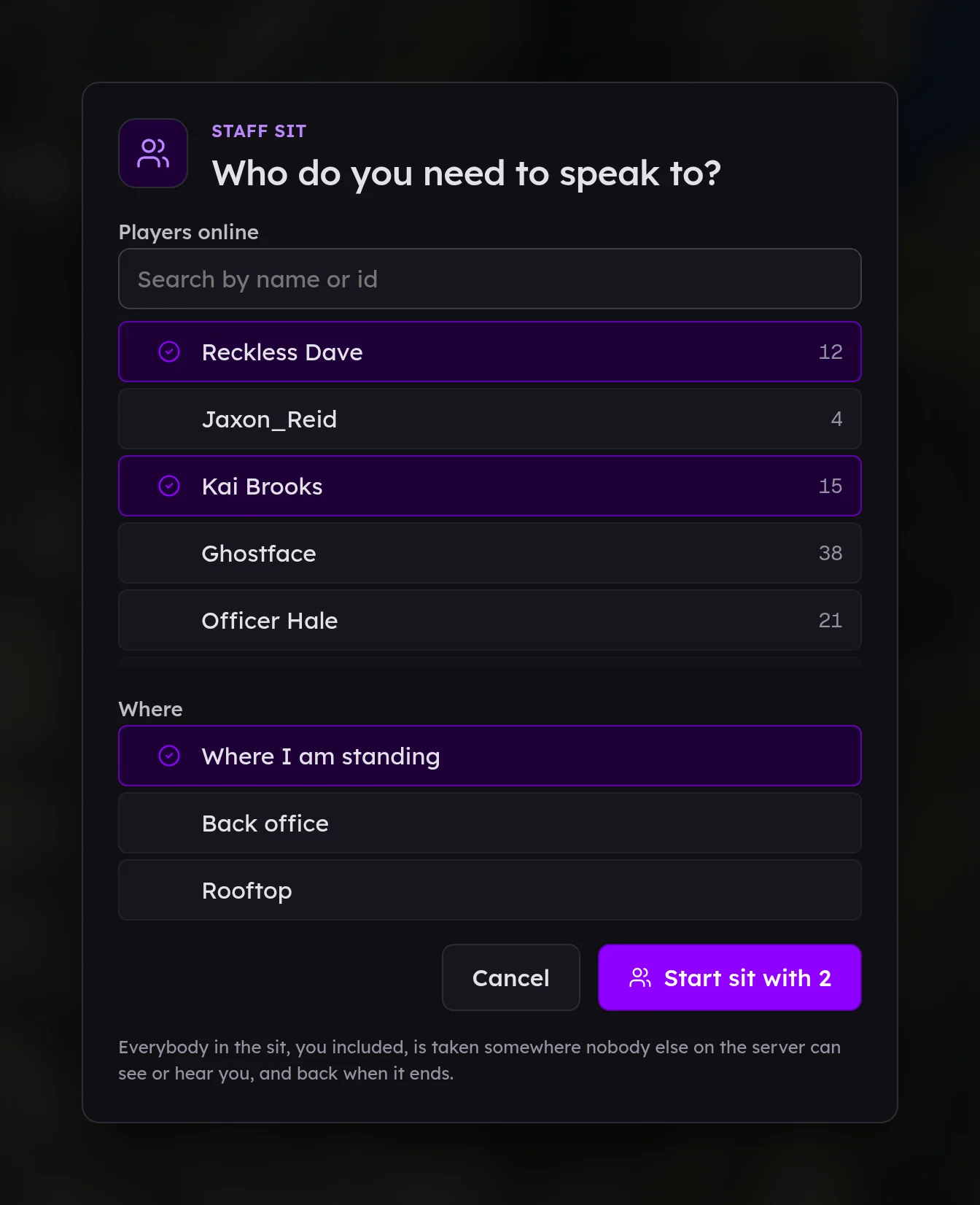
If you already know their ids, /staff sit 12 14 starts it straight away, held where you are standing. Type /staff sit end when you are done.
Staff timeouts#
Open a player's profile, choose Staff timeout, and give the minutes and a reason.
In game, type /staff timeout on its own and a window opens: type the player's id (the number over their head) or a name, or pick them from the list, then give the minutes and the reason and press Put in timeout. If you know the id already, /staff timeout 12 30 Ramming at the airport does it in one line.
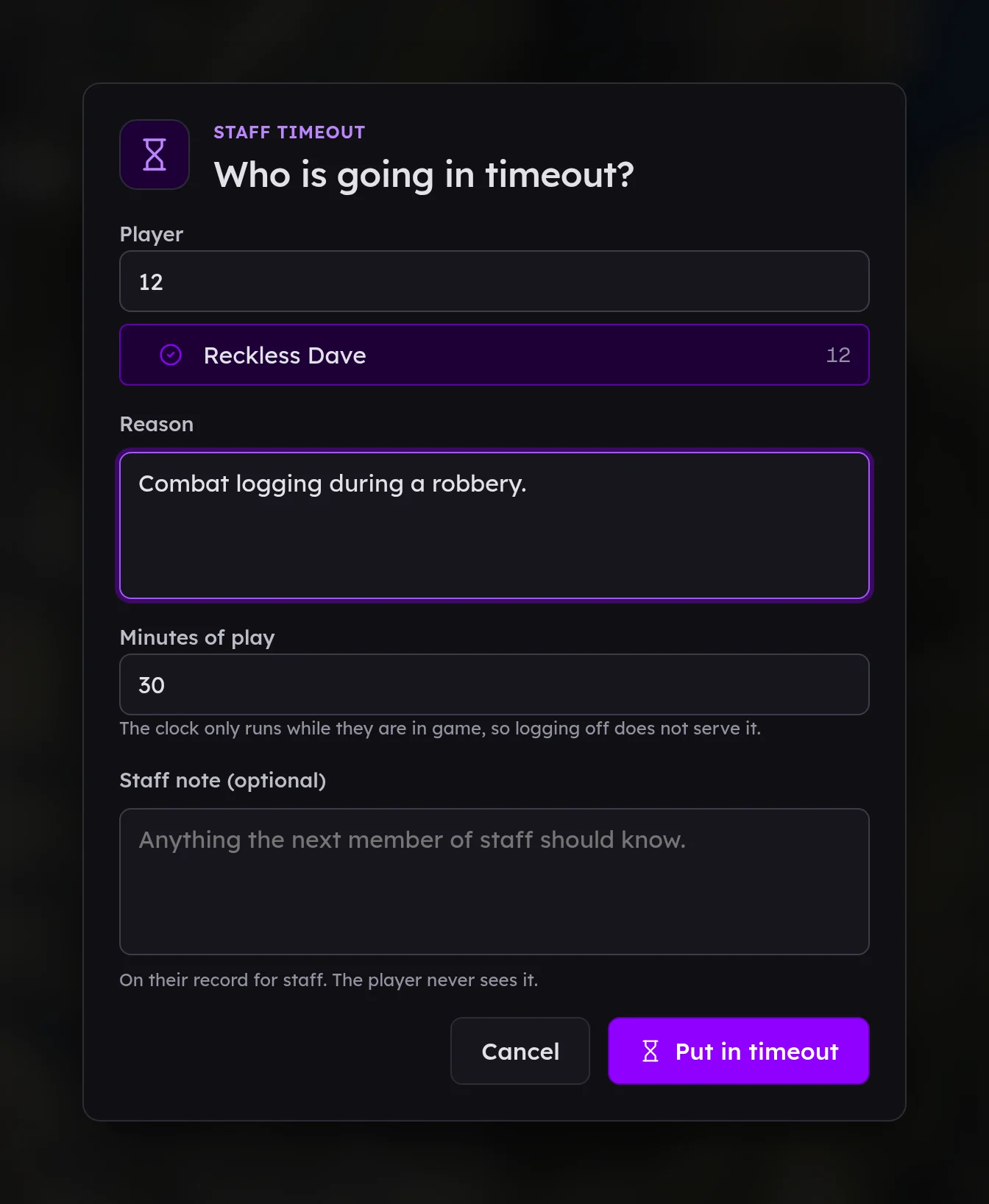
The player is taken to the timeout spot, apart from everybody else, and sees a banner with a countdown, your name and the reason.
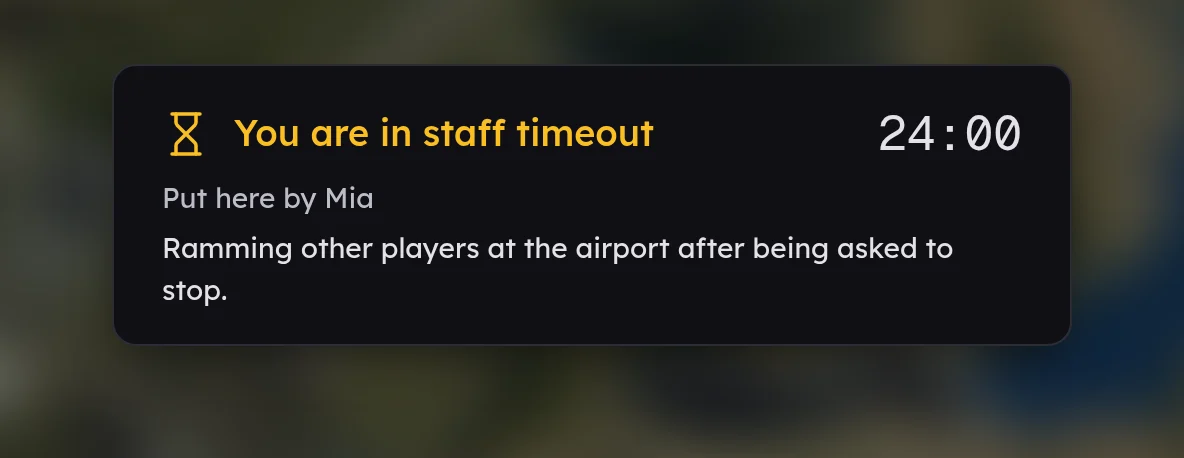
- The clock only runs while they are playing. Logging off, sitting on the character screen or trying to wander away all stop it, so the time cannot be waited out from the menu.
- Leaving does not get them out. When they come back, they are put back once they have picked their character, with the time they had left.
- They cannot cause trouble while they wait. They cannot use weapons or vehicles, cannot be hurt, and are brought back if they move more than a few metres from the spot.
When the time is up they are taken to the release spot. To let somebody out early, press Release now on their profile.
Seeing who is in timeout#
Anybody in staff timeout is listed on your server's dashboard while they are held, marked In timeout on the Players list (choose In staff timeout from the status filter to see only them) and on the Characters list, and ringed in amber on the live map.
Timeouts and trust#
Each staff timeout lowers the player's trust score, by 6 points unless you change it. Set how much under Trust in the panel, beside the weights for warnings and kicks. It counts whether they served it or you let them out early.
Voice mutes#
Open a player's profile and choose Mute voice chat, with a reason and, if you like, how long for. In game, /staff mute does the same: see staff commands. Nobody can hear them until it ends or you press Unmute. The player sees a line at the top of their screen saying staff have muted them. A mute stays in place if they leave and come back.
If your server already uses /staff#
FiveStaff's commands are all under /staff (see staff commands), so they leave emote scripts and anything else that owns /sit or /timeout alone. If another script already uses /staff, give FiveStaff's a different name in server.cfg:
set fivestaff_staff_command "fsstaff"