
Server settings
Change your server's name, logo, currency and appeal page colour, hand the server to somebody else, or close it.
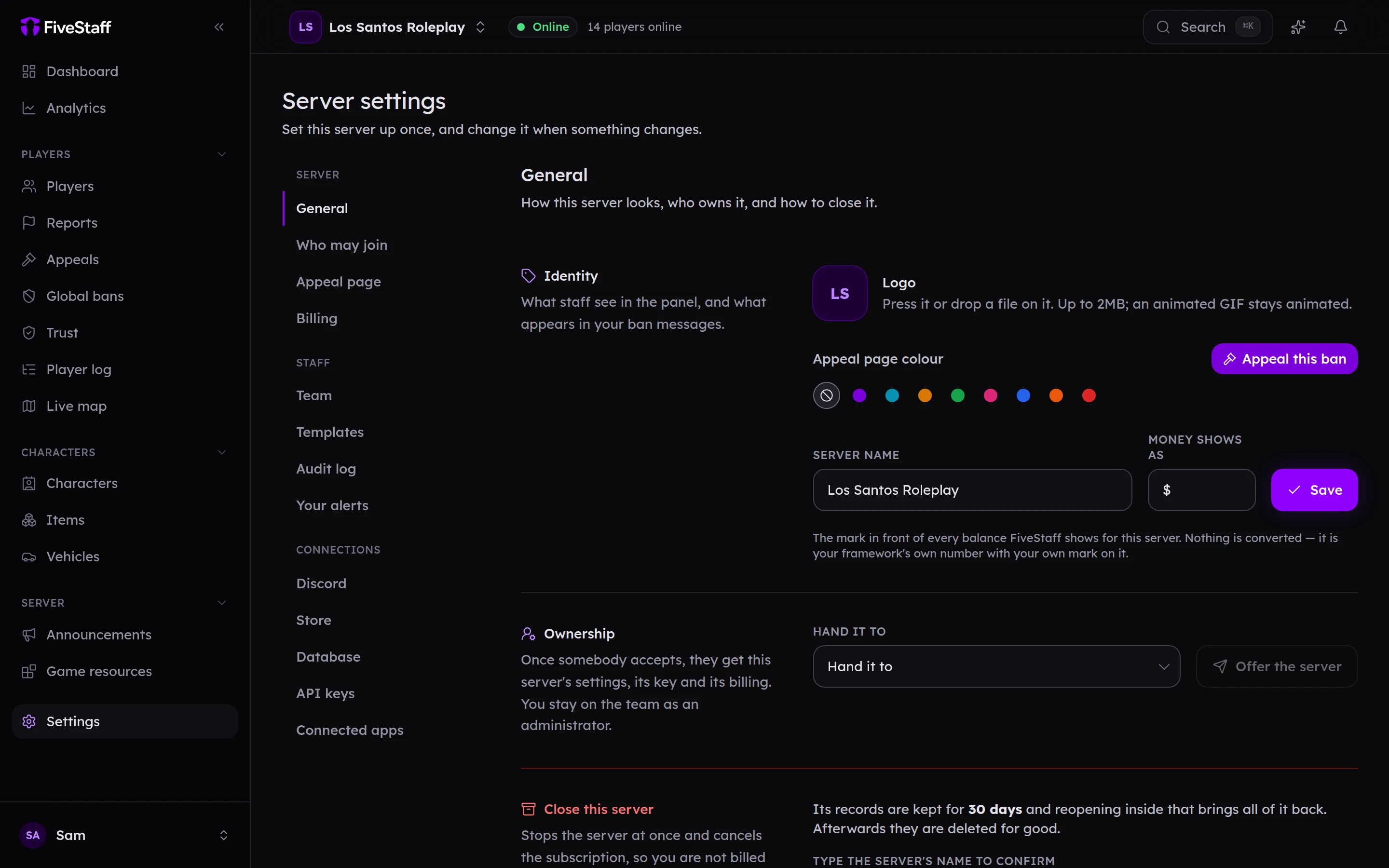
Settings in the sidebar opens your server's settings. The column on the left lists every section, grouped into Server, Staff and Connections. You only see the sections your role can use.
General#
Identity#
- Logo: press it or drop a file on it. PNG, JPG, WebP or GIF up to 2 MB. An animated GIF stays animated.
- Appeal page colour: the accent on your appeal page. It saves as soon as you press one.
- Server name: how your server appears everywhere in FiveStaff.
- Money shows as: the symbol in front of every amount, such as
$or£. Nothing is converted; it only changes how amounts are shown.
Ownership#
Only the owner sees this. To hand your server to somebody else on your team:
- Choose them under Hand it to.
- Press Offer the server.
- They are emailed, and must accept within seven days.
Once they accept, they own the server, its key and its billing. You stay on the team as an administrator. You can Withdraw the offer until they accept.
Close this server#
Only the owner sees this. Type your server's name to confirm and press Close this server. It stops straight away and any subscription is cancelled. Your records are kept for 30 days, and Reopen the server brings everything back in that time, on the Free plan.
The other sections#
| Section | Where it is explained |
|---|---|
| Who may join | Who may join |
| Appeal page | The appeal page |
| Billing | Plans and billing |
| Team | Invite your team and staff trials |
| Templates | Templates |
| Audit log | The audit log |
| Your alerts | Notifications and alerts |
| Discord | Connect Discord |
| Store | Tebex |
| Database | Connect your game database |
| API keys and Connected apps | API keys and connected apps |
Settings that are saved together show a bar at the bottom of the screen when something has changed, with Save and Reset.
Your server key#
The Server key card on the dashboard shows the start of your key and when it was last changed. Press Regenerate key if your key has got out. The old key stops working straight away, so put the new one in your resource's config.lua (or download the resource again) to reconnect.