
Guildbase applications
Connect Guildbase so that accepting a whitelist or staff application adds the applicant to your FiveStaff allow list straight away, with nothing to copy across.
On this page
Guildbase runs your whitelist and staff applications. Connect it to FiveStaff and the moment you accept an application in Guildbase, the applicant is added to your server's allow list. They can join your server straight away. Nobody has to copy a licence or a Discord ID across by hand.
It works alongside who may join: set your server to Only the allow list or A role in your Discord, and Guildbase becomes the way in.
What it does#
- Accepting an application adds the applicant to the allow list, by the licence or Discord account Guildbase holds for them. Guildbase can give a reason, and an end date for a trial or an event pass.
- It can take people off again, if you allow it to.
- It can see who is on your allow list, so Guildbase can tell you whether an applicant is already in.
That is all it can do. Guildbase cannot ban, warn or see your players' records, and it cannot change anything else about your server.
Every change it makes is written to the audit log as done by Guildbase, not by a member of your staff, so you can always tell an application from a manual change.
Connecting it from Guildbase#
The quickest way starts in Guildbase.
- In Guildbase, open the application form you want to connect and choose to connect it to FiveStaff.
- Guildbase sends you to FiveStaff. Sign in with Discord if you are asked.
- Choose which server to connect. Only servers where you can manage connections are listed.
- Check what it may do. You can untick anything you do not want it to have.
- Press Connect. You are sent back to Guildbase, which now says it is connected.
Connecting it from FiveStaff#
You can also start from the panel.
- Go to Settings → Connected apps.
- Under Add an app, find Guildbase and press Connect.
- Choose what it may do, then copy the connection code FiveStaff shows. It is shown once.
- Paste the code into Guildbase.
More than one form#
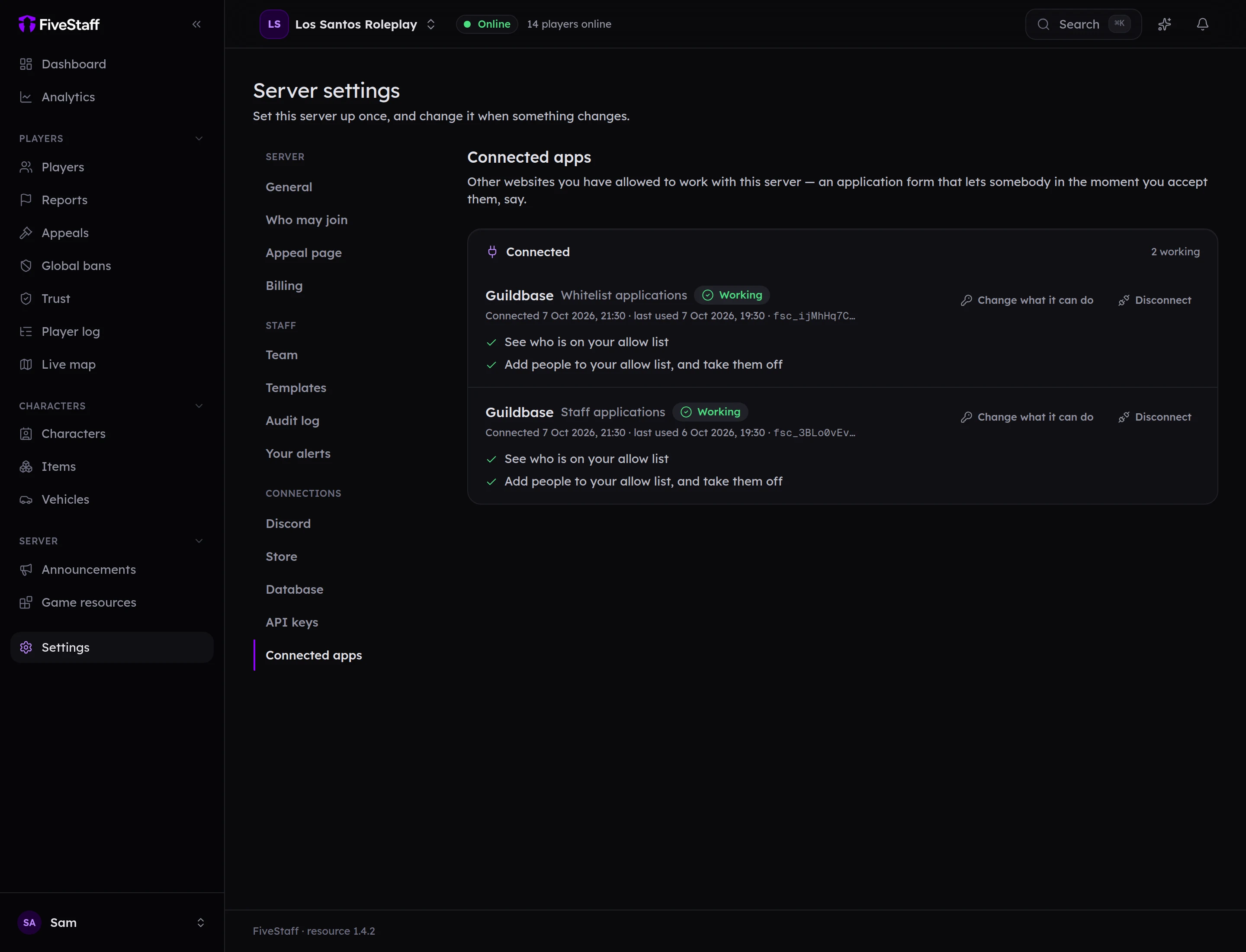
Many communities run several forms: a whitelist application, a staff application, a gang application. Each form can be connected on its own, and each shows as its own row on Connected apps with the form's name beside it.
Changing or removing it#
On Settings → Connected apps, each connection shows whether it is Working and when it was last used.
- Change what it can do adds or takes away what that connection may do.
- Disconnect stops it straight away. People already added to your allow list stay on it.
Connecting and managing apps needs the Manage API keys permission.
Coming next#
Seeing a player's Guildbase application on their FiveStaff profile, beside the record they have built since, is on the way. Until then, the allow list entry's reason says which application let them in.