
Connect your game database
Let FiveStaff read your framework's database so your staff can see characters, money, inventories and vehicles, and connect it safely with a read-only user.
On this page
FiveStaff can read your framework's MySQL database to show your staff every character, their money, inventory, job and vehicles, even for players who are offline. The server owner can connect it, and can let staff see or change the connection with the Game database permissions.
Create a read-only user first#
FiveStaff only needs to read your database. Give it its own MySQL user that can read and nothing else. Run this in your database tool (HeidiSQL, phpMyAdmin or similar), with your own password and database name:
CREATE USER 'fivestaff'@'%' IDENTIFIED BY 'a-long-random-password';
GRANT SELECT ON your_database.* TO 'fivestaff'@'%';
Your database must accept connections from outside your machine. If your host only allows local connections, ask them to allow remote access for this user.
Connect it#
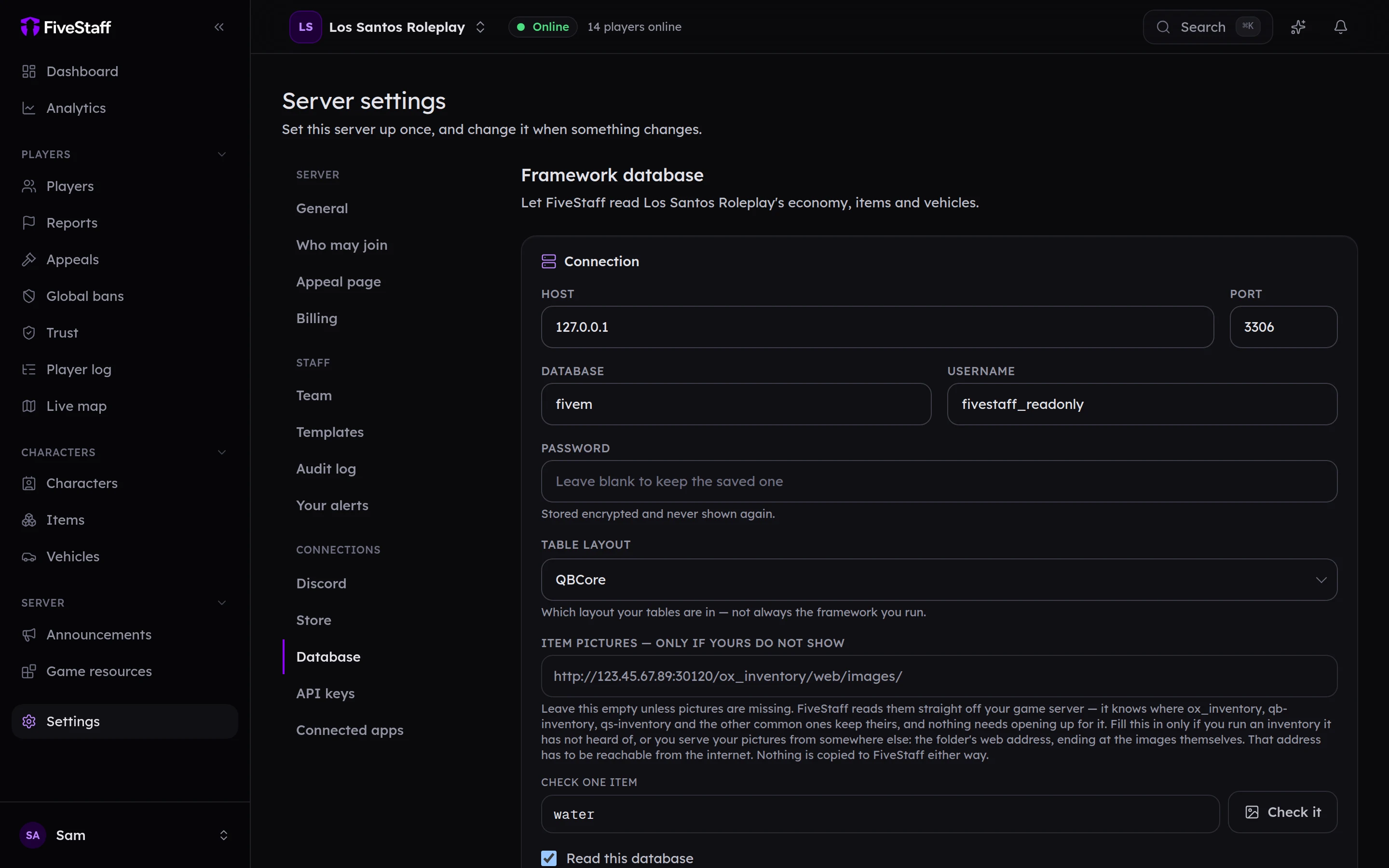
- Go to Settings → Database.
- Fill in the Host, Port, Database name, Username and Password.
- Choose the Table layout: QBCore, Qbox or ESX. This is the layout your tables use, which is usually but not always your framework. For any other framework, choose Other and read Other frameworks next.
- Tick Read this database.
- Press Save and test.
The Status card says Connected and reading when it works. If it does not, it says what went wrong.
The password is stored encrypted and never shown again.
Other frameworks#
FiveStaff knows QBCore, Qbox and ESX by itself. If your server runs anything else, including a paid or escrowed framework, choose Other as the table layout, save the connection, and FiveStaff helps you tell it where your framework keeps its characters, money, inventories and vehicles.
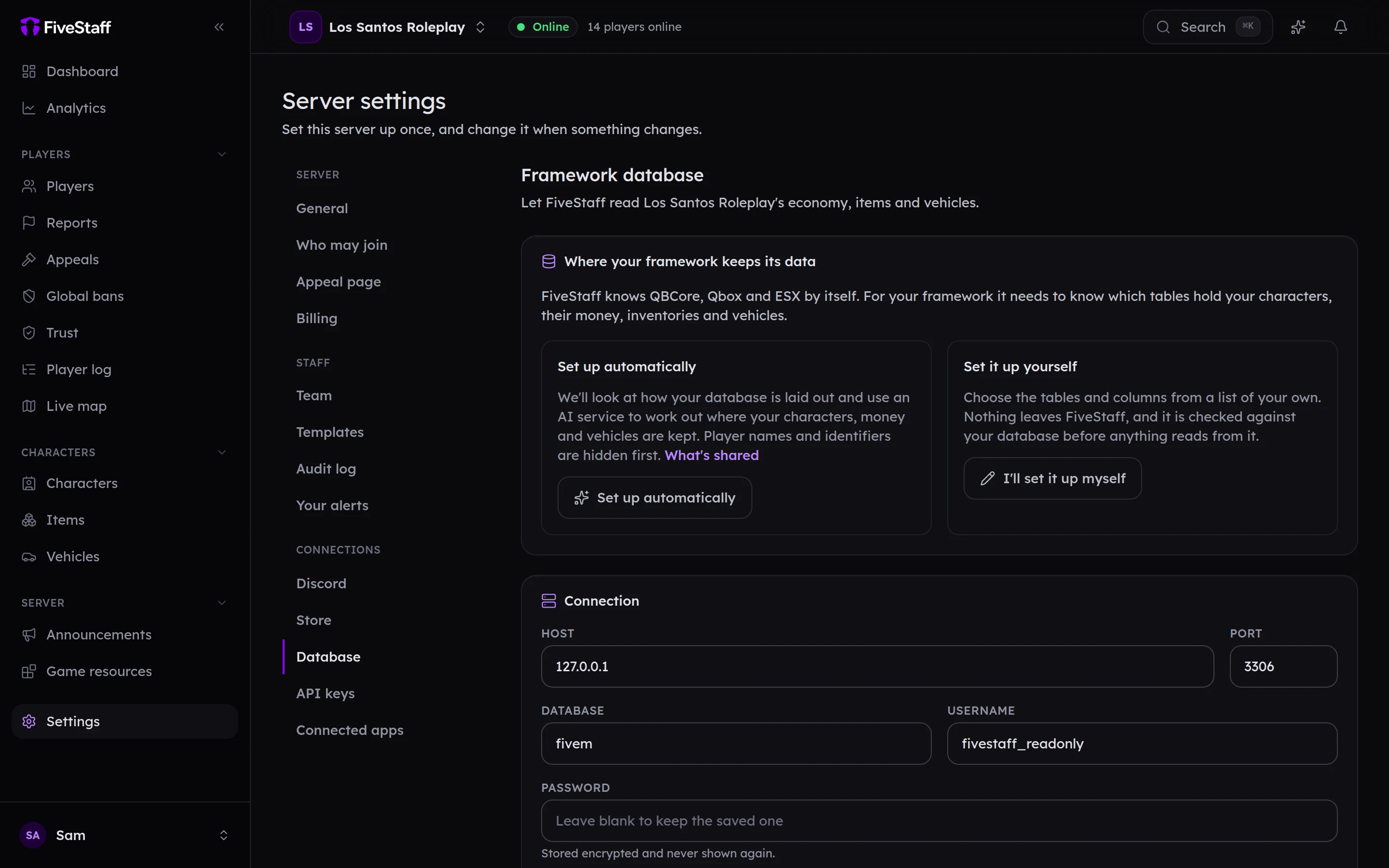
There are two ways to do it:
- Set up automatically (Pro). FiveStaff looks at how your database is laid out and uses an AI service to work out where everything is kept. This usually takes a minute or two, and you can leave the page while it works.
- Set it up yourself (every plan). Pick the tables and columns from lists of your own. Nothing leaves FiveStaff.
Either way, nothing is read from your database until you confirm it.
What is shared when it is set up automatically#
Only if you press Set up automatically, and only once:
- the names of your tables and their columns, and
- a few example rows from the tables most likely to hold characters and vehicles, with everything about your players hidden first. Names, licences, Discord and Steam ids, phone numbers, dates of birth, email and IP addresses, plates and anything typed into a free-text field are replaced with a description of their shape, such as "text, 6 characters" or "licence, 40 hex characters". Numbers such as balances, and the names of items and jobs, are kept, because that is what the layout is worked out from.
No other rows are read. The AI service is listed on our sub-processors page.
If another server running the same framework has already confirmed its layout, FiveStaff offers you that one instead, and nothing is sent anywhere.
Check it and confirm it#
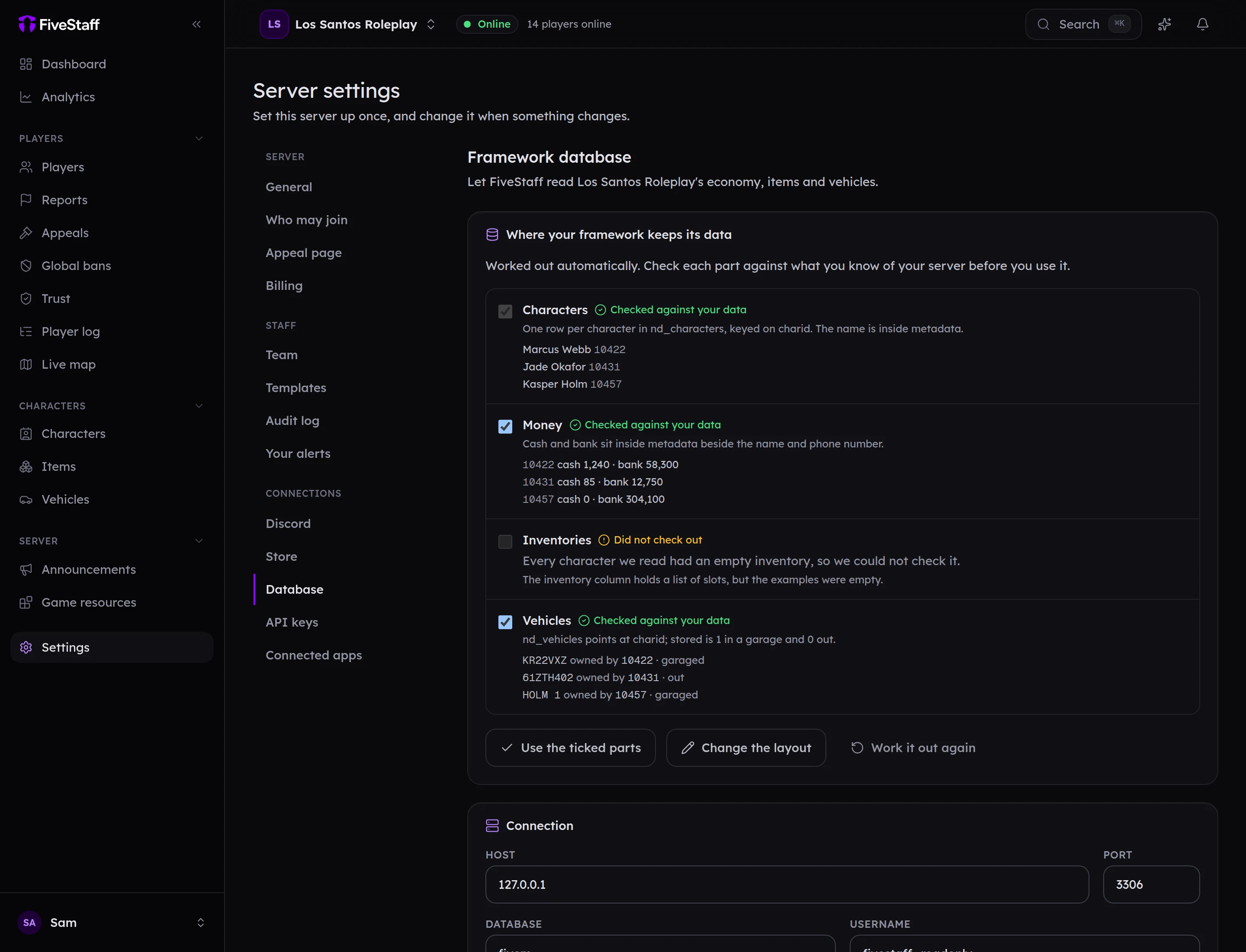
FiveStaff reads a few of your own characters through the layout before showing it to you, so you can see whether it got it right. Each part says whether it checked out against your data, with a few real rows underneath.
- Look down each part. Are those your characters, with the right names and balances?
- Untick any part you do not want FiveStaff to read. A part that did not check out cannot be ticked.
- Press Use the ticked parts.
Characters are always needed, because everything else belongs to a character. If something is wrong, press Change the layout to correct it, and FiveStaff checks it again.
If your framework changes its tables after an update, open Settings → Database and press Work it out again or Change the layout.
Item pictures#
FiveStaff shows item pictures from your inventory resource by itself, and knows ox_inventory, qb-inventory, qs-inventory and the other common ones. Only if yours do not show, enter the web address your item images are served from under Item pictures, then use Check it to test one item.
Without a database#
The Characters screen still works, but it only lists characters that have been played since FiveStaff was installed, and nothing can be edited.