
Warnings, kicks and bans
How to note, commend, warn, kick and ban a player, what the player sees, and how templates and trust scores fit in.
On this page
Every action on a player goes through the same steps: FiveStaff checks the staff member is allowed, writes it to the audit log, then carries it out. It works the same from the panel and from Discord.
Taking an action#
Open the player's profile. The Take action card is on the right.
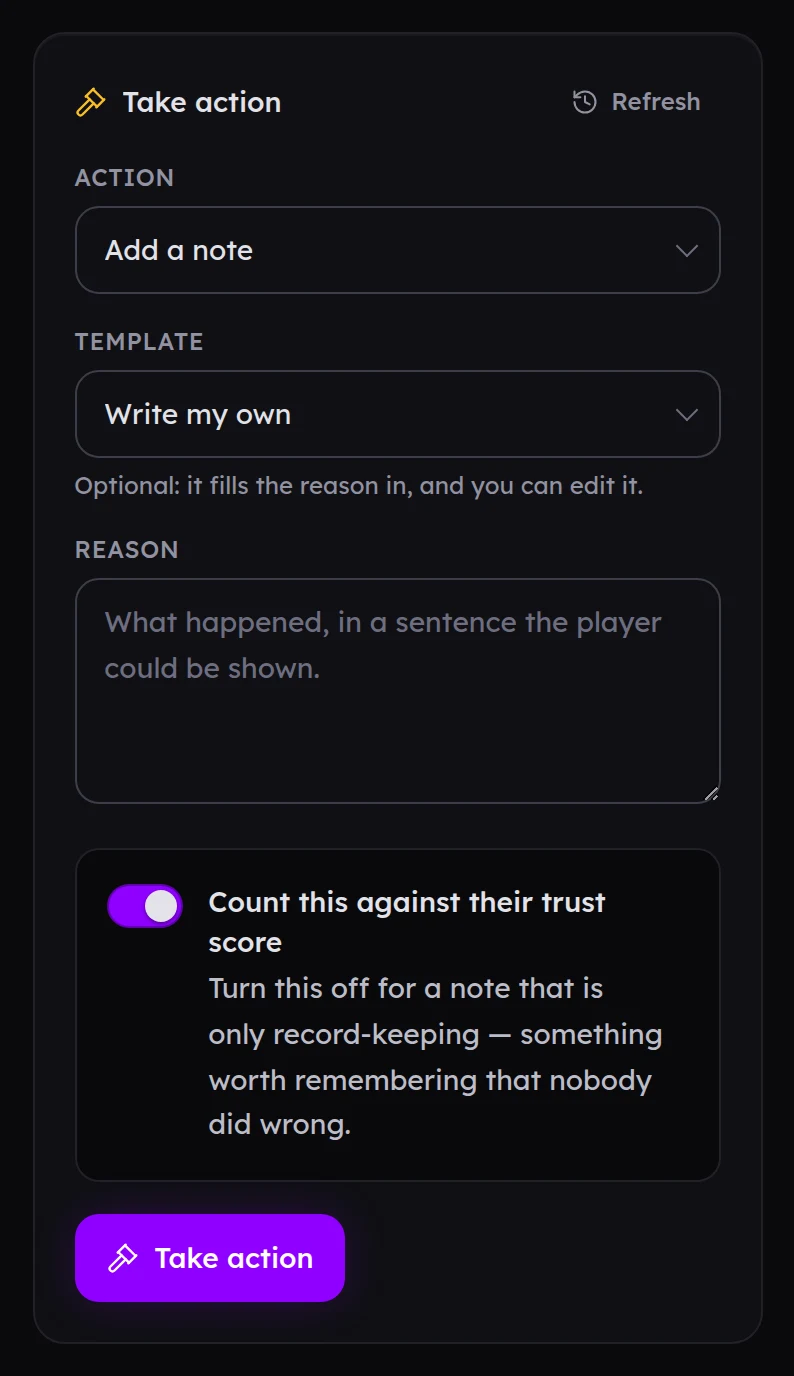
- Choose the Action.
- Optionally choose a Template to fill the reason in. You can still edit it. See templates.
- Write the Reason, in a sentence the player could be shown.
- Press Take action. Kicks and bans ask you to confirm first.
The five actions#
| Action | Player must be online? | What the player sees |
|---|---|---|
| Add a note | No | Nothing. Notes are for your team. |
| Commend | No | Nothing. It goes on their record and raises their trust score. |
| Warn | Yes | A warning in front of their game that they must acknowledge. |
| Kick | Yes | They are disconnected with the reason, and can rejoin straight away. |
| Ban | No | They are disconnected if online, and refused every time they try to join. |
Your role decides which of these you are offered.
What a warning looks like#
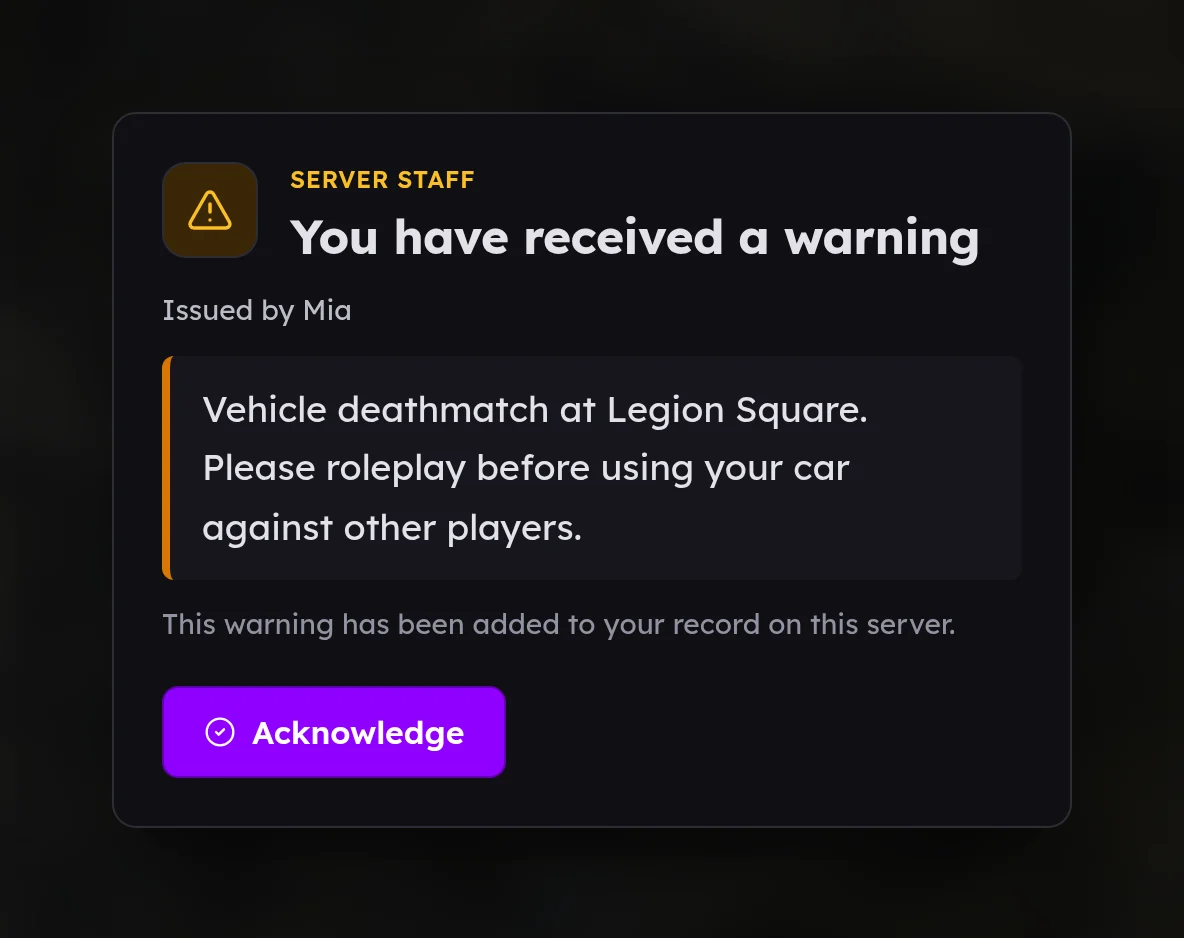
The warning shows who issued it and the reason, plays a sound and stays until the player presses Acknowledge. It is added to their record on your server.
What a ban looks like#
A banned player sees, on FiveM's connecting screen:
- that they are banned, and whether it is permanent or when it ends,
- the reason and the date,
- a reference number,
- where to appeal, if your server takes appeals.
Bans#
Choose Ban, then:
- Until a date: pick when it Ends. The date and time are in your own time zone.
- Permanently: it never ends unless somebody lifts it.
A role with only one of the two ban permissions is not asked; it gets the kind it is allowed.
A ban is checked every time the player connects, against all of their identifiers, so changing their name does not get them in. Your game server keeps its own copy of your ban list, so bans still apply even if it cannot reach FiveStaff.
To lift a ban, open the player's Bans tab and press Lift ban. The ban stays in their history, marked as lifted.
Notes and trust#
Notes have a switch, Count this against their trust score, which is on by default. Turn it off for a note that is just record-keeping, such as "asked about joining the police". Warnings, kicks, bans and commendations always count. See trust scores.
Freeze, heal and revive#
These live on the live view, because you usually want to see the player while you use them.