
Account security
Turn on two-step verification for your FiveStaff account, keep your recovery codes safe and see where you are signed in.
On this page
Your FiveStaff account is your Discord account, so the first step is to protect Discord itself with two-factor authentication. Then add two-step verification to FiveStaff as well, so a stolen Discord login alone cannot get into your server.
Open Your account → Security.
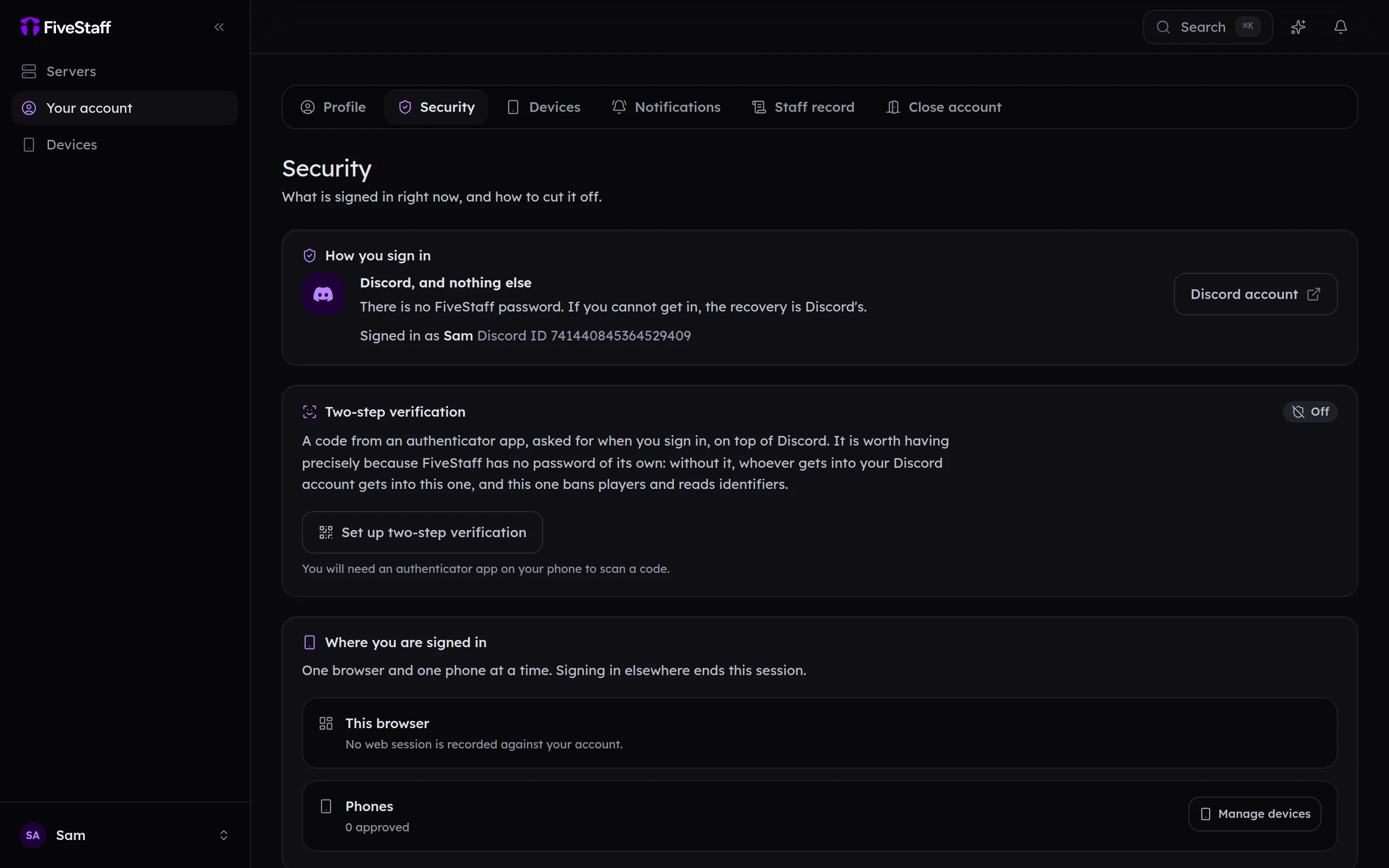
Turning on two-step verification#
You need an authenticator app on your phone, such as Google Authenticator, Authy, 1Password or Bitwarden.
- Press Set up two-step verification.
- Scan the code with your authenticator app, or type the key in by hand.
- Enter the six-digit code the app shows and press Turn it on.
- Save your recovery codes. They are shown once. Keep them somewhere other than your phone, such as a password manager.
From then on, after signing in with Discord, FiveStaff asks for the six digits your app is showing.
If you lose your phone#
Press Use a recovery code on the sign-in screen and enter one of your recovery codes. Each code works once. Once you are in, press New recovery codes to make a fresh set.
If you have lost both your phone and your recovery codes, open a ticket in the support Discord. We will check it is really your account before turning two-step verification off.
Requiring it for your team#
Server owners can require two-step verification of everybody on their team, under Settings → Team → Security. See invite your team.
Where you are signed in#
Where you are signed in lists your browser and your phone. You can be signed in on one browser and one phone at a time. Signing in elsewhere ends the old session. Approve and remove phones under Your account → Devices.
FiveStaff emails you when your account is signed in to from somewhere new.