
Staff commands in game
Ban, kick, warn, mute and message players without leaving the game, see trust scores over heads, and get new reports as they arrive.
On this page
Everything FiveStaff does in game for staff is under one command, /staff. Typed on its own, each one opens a small window over the game. Typed in full, it does the job in one line. Either way it goes through the same checks as the panel and lands in the audit log, marked as done in game.
| Command | What it does | Permission |
|---|---|---|
| /staff panel | Opens the full panel over the game. See the panel in game | Use the in-game panel |
| /staff ban | Bans a player, for a time or permanently | Ban for a set time and/or Ban permanently |
| /staff kick | Removes a player from the server | Kick players |
| /staff warn | Puts a warning in front of a player that they must acknowledge | Warn players |
| /staff mute | Mutes a player's voice chat, for a time or until you lift it | Mute and unmute voice chat |
| /staff message | Sends one player a private message, like the one on the live view | Message a player privately |
| /staff timeout | Puts a player in staff timeout. See sits and timeouts | Put players in staff timeout and release them |
| /staff sit | Starts a staff sit. See sits and timeouts | Hold staff sits |
| /staff overlay | Shows a tag over nearby players' heads with their trust score and recent record | View players |
Your role decides which of these you can use, exactly as it does in the panel. Somebody whose role cannot ban is told so the moment they type /staff ban, before any window opens, and a role that can only ban for a time is never offered Permanent. Turn these on for a role under Settings → Team → Roles.
Using the windows#
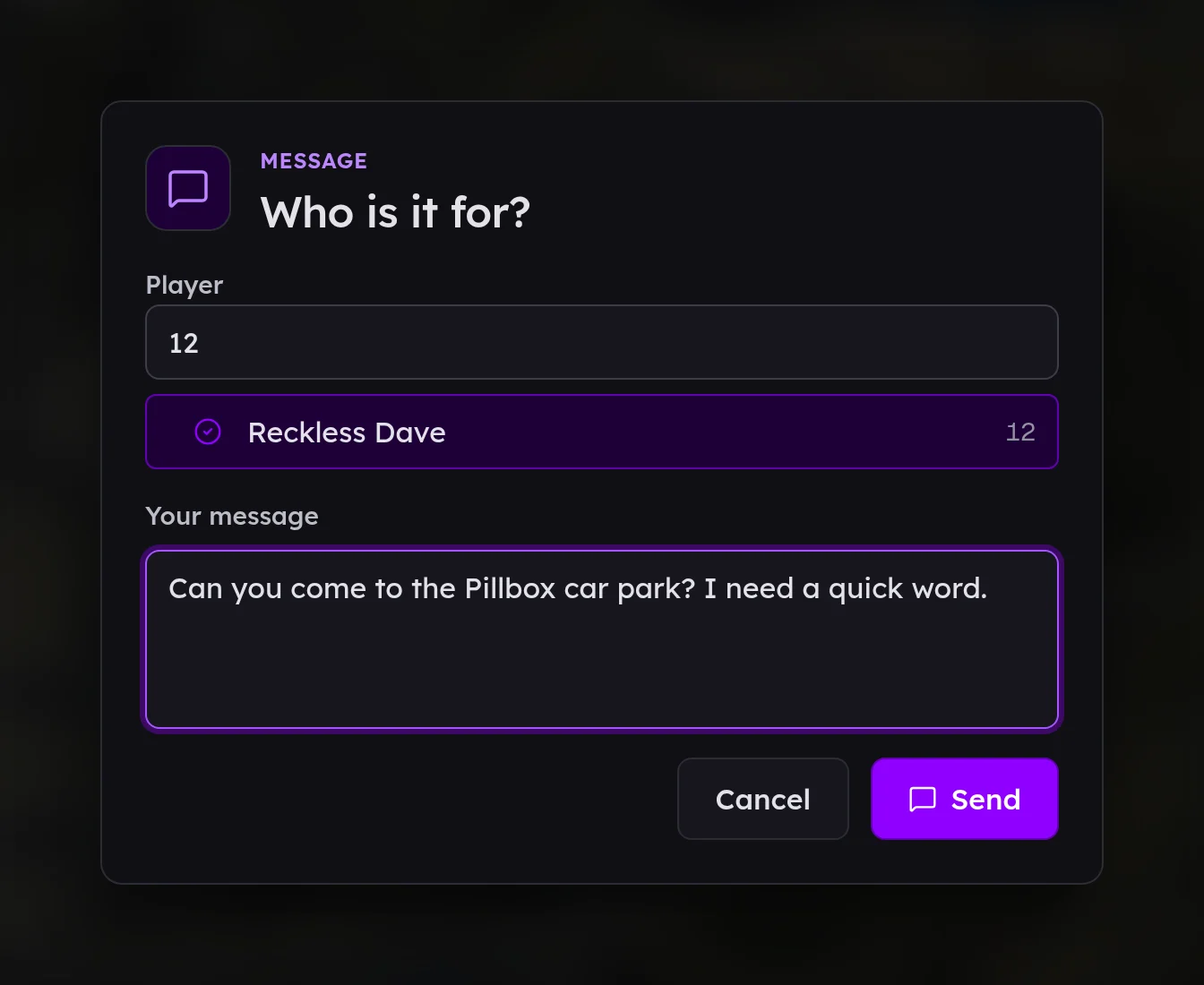
Type the command on its own, such as /staff ban, and a window opens over the game.
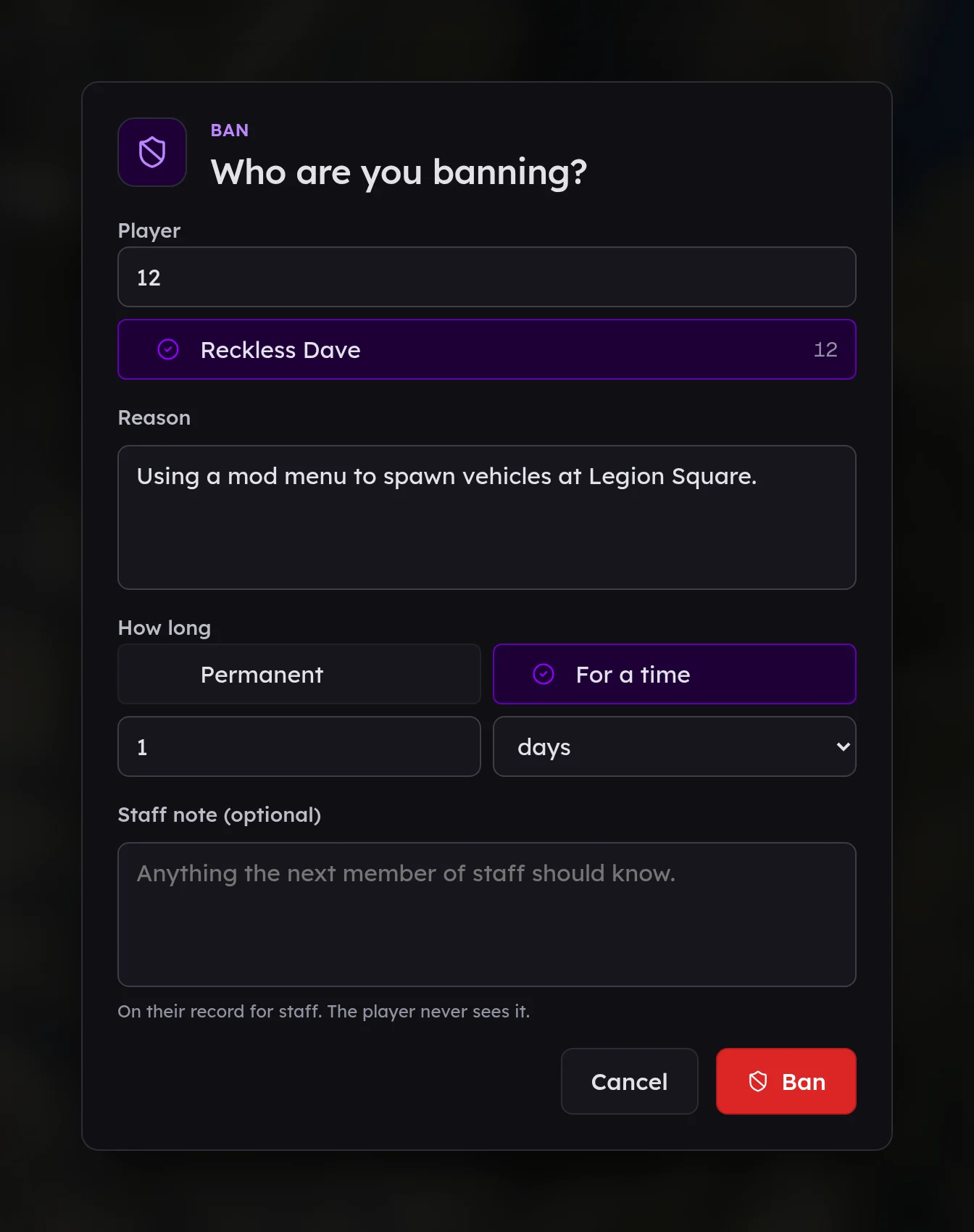
- Player: type their id (the number over their head) or part of their name, or pick them from the list of everybody online. Typing an id in full picks that player straight away.
- Reason: what they did, in a sentence they could be shown. It goes on their record.
- How long, for a ban or a mute: Permanent (or Until lifted for a mute), or For a time with an amount and minutes, hours, days, weeks, months or years.
- Staff note, if you like: something for the next member of staff. It goes on their record as a note and the player never sees it.
- Press the button at the bottom. Cancel or Esc closes the window without doing anything.
You get a line at the top of your screen saying what happened, or what stopped it.
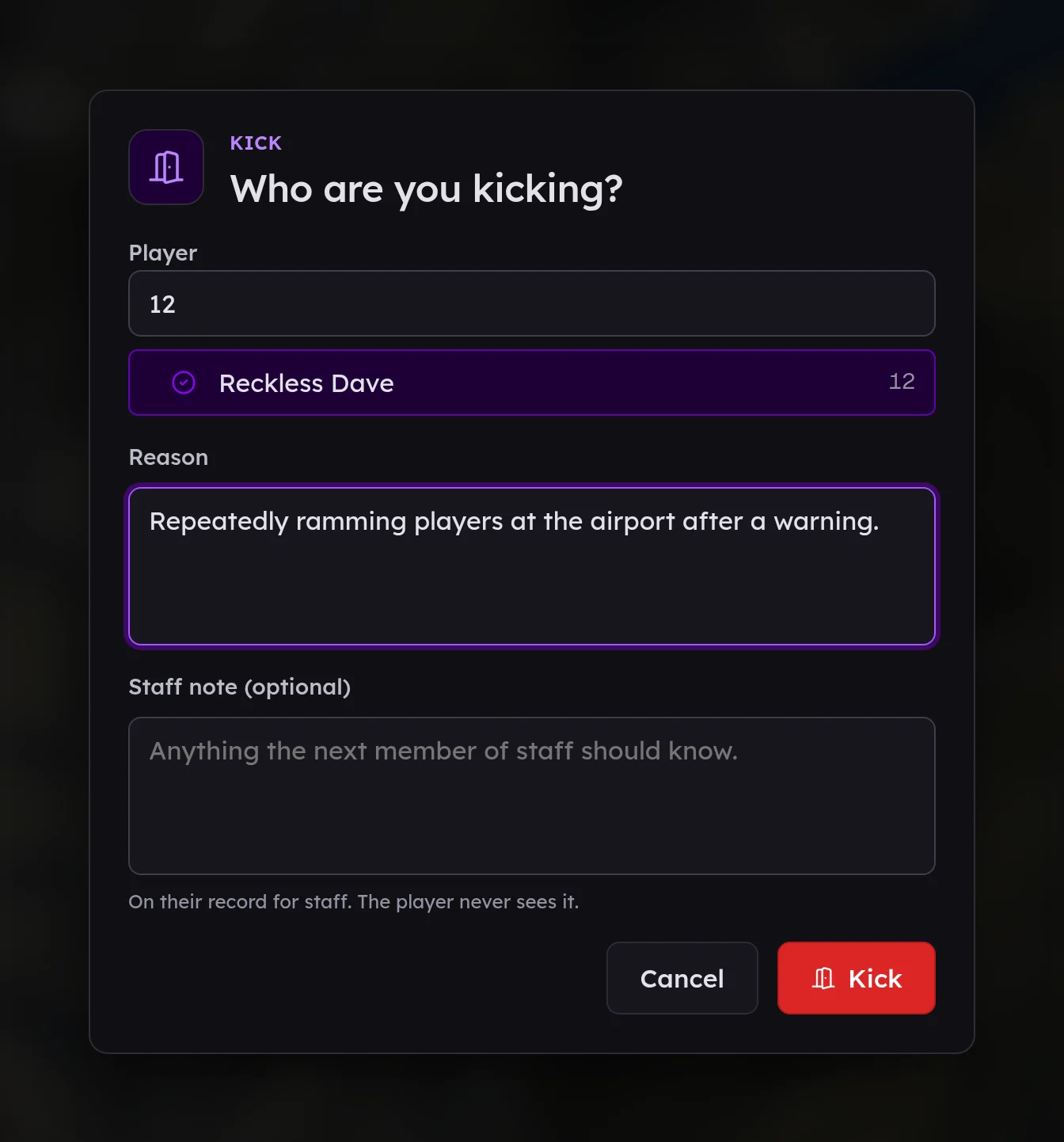
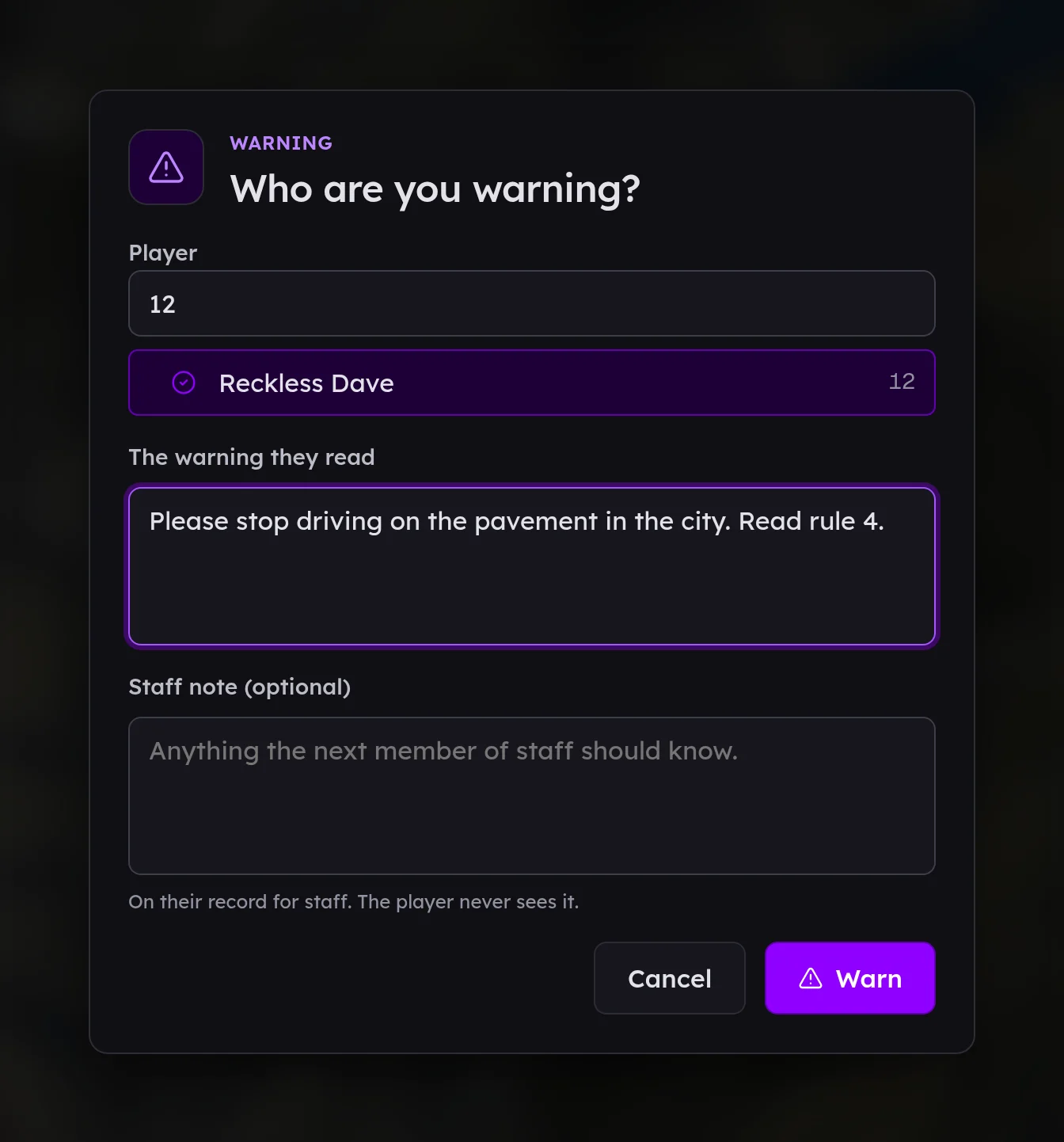
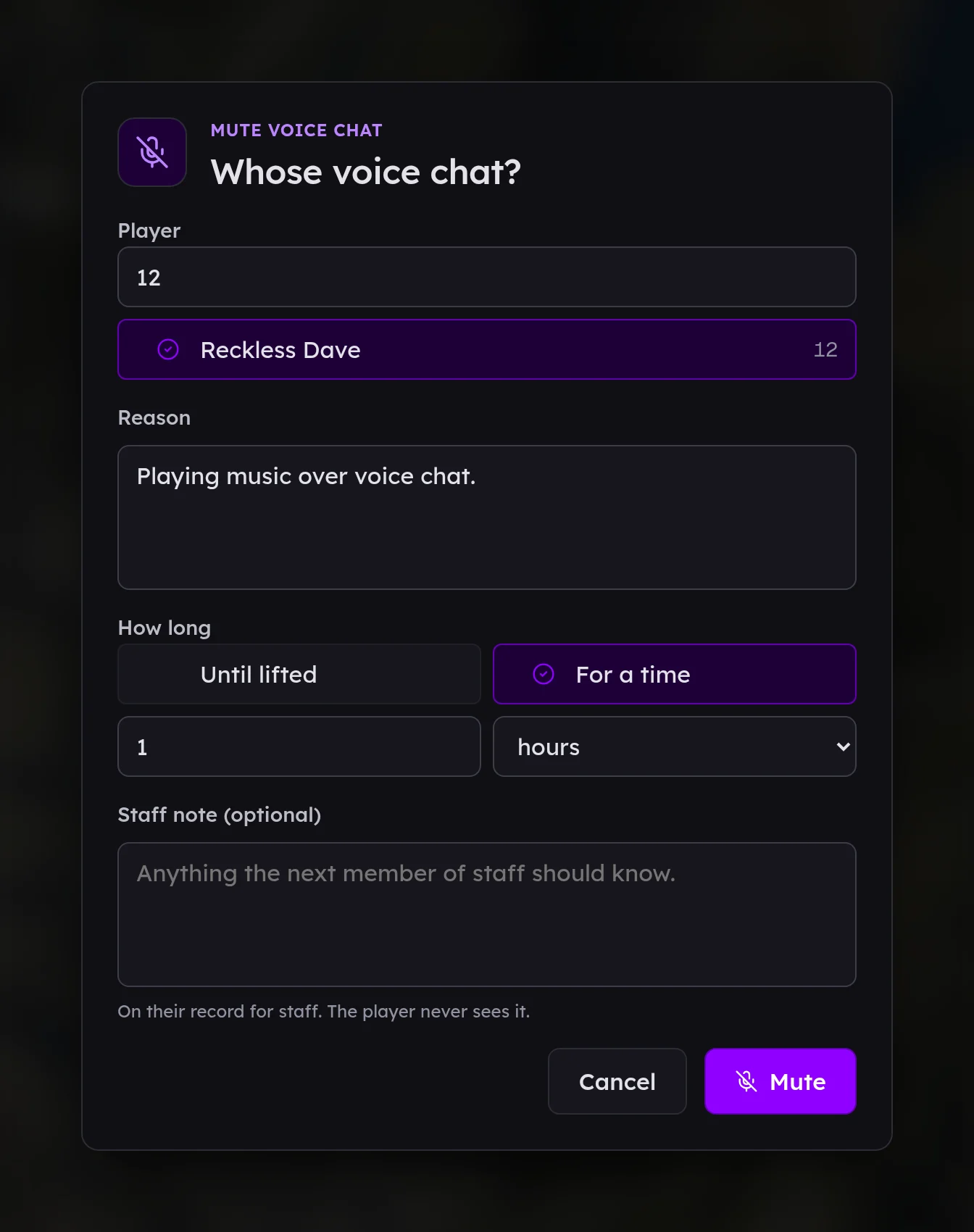
Every window looks the same, so there is nothing new to learn for each one.
Typing it in full#
If you already know the id, you can skip the window.
/staff ban 12 Using a mod menu
/staff ban 12 Using a mod menu 7d
/staff kick 12 Ramming at the airport after a warning
/staff warn 12 Please stop driving on the pavement
/staff mute 12 Music over voice chat 2h
/staff message 12 Can you meet me at the Pillbox car park?
/staff timeout 12 30 Combat logging
- A ban with no length is permanent. Add a length as the last word to make it end:
30m,12h,3d,2w,6moor1y. - A mute with no length lasts until you lift it. The same lengths work.
- A timeout always gives the minutes second:
/staff timeout <id> <minutes> <reason>.
The player has to be on the server. If your role cannot do it, you are told which permission is missing, such as "Your role cannot ban players permanently. Give the ban an end, or ask the server's owner."
Player tags#
Type /staff overlay on and a tag appears over every player near you. /staff overlay off takes them down, and /staff overlay on its own switches between the two.
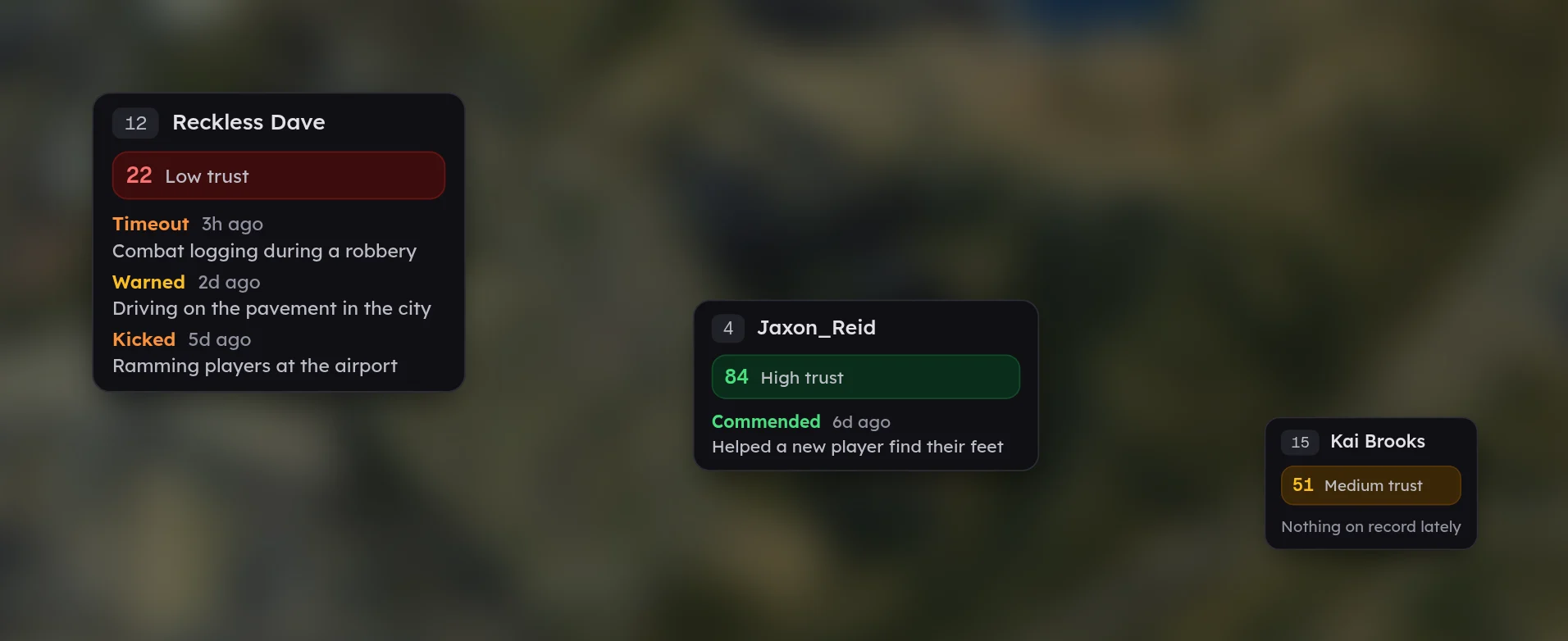
Each tag shows:
- the player's id, the number you type in a command, and their name,
- their trust score in its colour, if your role includes View trust scores,
- the last few things on their record from the past month, newest first: notes, warnings, kicks, bans, commendations and staff timeouts, each with how long ago and the reason.
Only you see your tags, and they only appear for players within about forty metres of your camera, so they work while you are spectating or flying about too. They refresh every half a minute, so a warning somebody else gives appears over that player's head shortly after. Nearer tags are drawn larger and on top.
New reports in game#
When a player sends a report, every member of staff who is playing and can see reports gets a card in the top right corner of their screen: who reported whom, and the start of what they wrote.
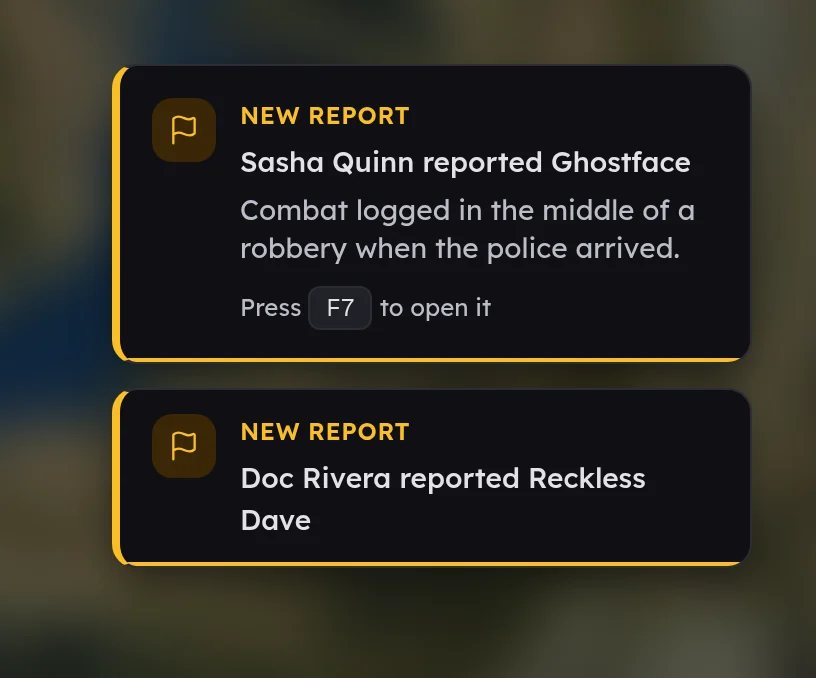
Anybody whose role includes View reports gets it. Press F7 while the card is up and the panel opens in game straight on that report, ready to claim. If you do nothing, the card goes after twenty seconds and the report waits in the queue as usual.
- The player who sent the report and the player it is about never get the card, even if they are staff.
- To use a different key, open FiveM's Settings → Key Bindings → FiveStaff and change FiveStaff: open the newest report. The card always shows the key you have chosen.
- To change the starting key for everybody on your server, add
setr fivestaff_report_key "F9"toserver.cfg. To keep the card up for longer, addset fivestaff_report_alert_seconds 45.
If your server already uses /staff#
If another script already uses /staff, give FiveStaff's commands a different name in server.cfg:
set fivestaff_staff_command "fsstaff"
Every command above then starts with /fsstaff instead.