
A player's profile
Everything FiveStaff knows about one player, from their history and bans to their trust score, characters, reports and identifiers.
On this page
Open any player to see their profile. It brings together their record, their standing and everything your server knows about them.
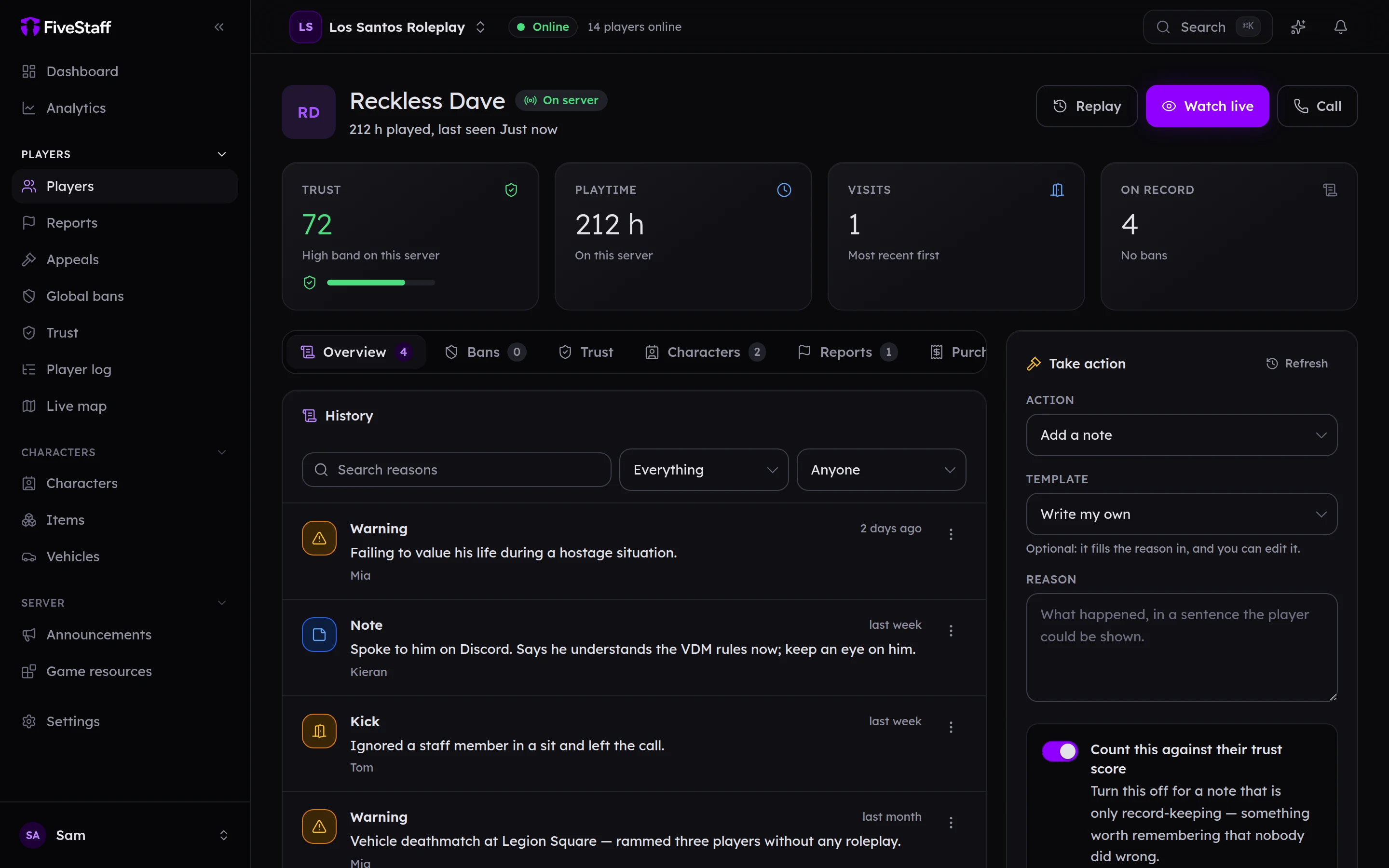
The header#
The player's name, whether they are On server or Banned, how long they have played and when they were last seen. If the player is also on your staff team, their staff role is shown too.
While the player is online, two buttons appear:
Replay plays back where they have been over the last few minutes. See replay.
Below that are their Trust score, Playtime, Visits and how much is On record.
The tabs#
| Tab | What it shows |
|---|---|
| Overview | Their History: every note, warning, kick, ban and commendation, newest first. Search it, or filter by kind and by who wrote it. Below it, Linked accounts lists other players who share an identifier with them. |
| Bans | Every ban, whether it is still in force, and who placed it. Lift a ban from here. |
| Trust | How their trust score was worked out, input by input. |
| Framework and Characters | Their characters, money, inventory and vehicles, from your game database. See characters. |
| Reports | Reports about them, and reports they made. |
| Purchases | What they bought from your Tebex store. |
| Activity | Their entries in the player log. |
| Visits | Every time they joined and left, and which character they played. |
| Identifiers | Their licence, Discord ID and other identifiers. Addresses and hardware tokens show as a code, not the real value. |
A tab only appears if your role can see it and there is something behind it. Opening someone's identifiers is written to the audit log.
Linked accounts#
When two players share a licence, an IP address or a hardware token, FiveStaff links them. If one of them is banned, the other's profile says Linked to a ban.
FiveStaff does not ban anybody for this by itself. A shared address is often a household. It is a flag for your team to look at. You can choose to refuse linked players at the door in trust settings.
Taking action#
The Take action card on the right adds a note, a commendation, a warning, a kick or a ban. See warnings, kicks and bans.
Changing a record#
Every record in the History has a ⋯ menu:
- Amend this record changes the reason. On a ban that is still in force, you can also change when it ends. The audit log keeps what it said before.
- Delete this record removes it for good and works out their trust score again. Deleting a ban lifts it first.
Both need their own permissions, on top of permission to give that kind of record in the first place.