
Invite your team
Create roles that decide what each member of staff can do, then invite people with a link or let your Discord roles add them for you.
On this page
Everybody on your team has a role, and the role decides what they can see and do. So you create your roles first, then invite people into them.
You, the owner, can do everything and do not need a role.
1. Create your roles#
Go to Settings → Team and press Manage roles.
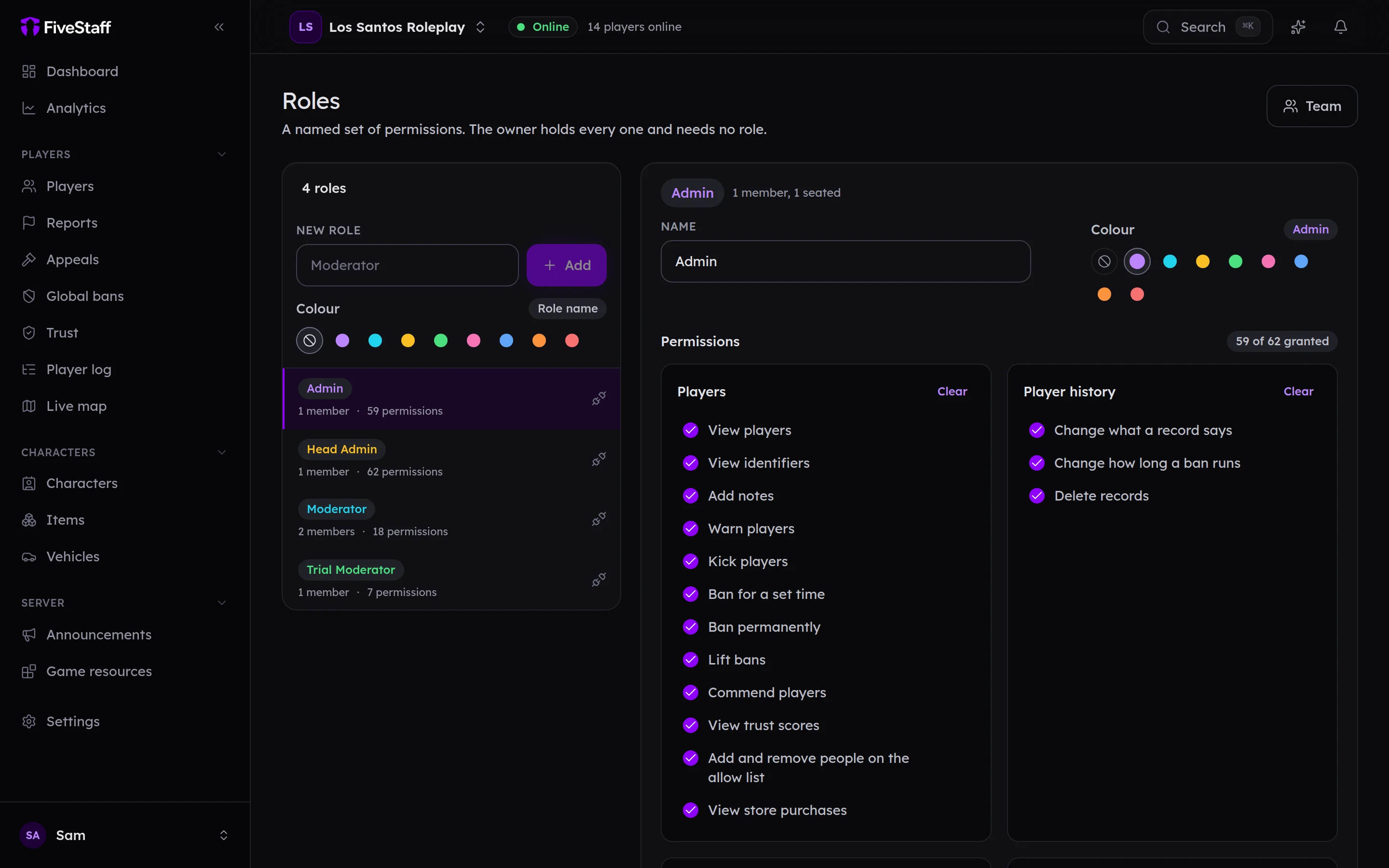
- Type a name into New role, such as
Moderator, pick a colour if you like, and press Add. - Tick the permissions the role should have. They are grouped by area: Players, Reports, Live view and calls, Bans and so on. Each group has Select all and Clear.
- Press Save changes in the bar at the bottom of the screen.
Most servers start with three or four roles, for example:
| Role | Typically can |
|---|---|
| Trial Moderator | View players, add notes, warn, handle reports |
| Moderator | All of that, plus kick, temporary bans, the live map and live view |
| Admin | Nearly everything, including permanent bans, appeals and the player log |
| Head Admin | Everything except billing |
Roles and permissions explains every permission.
2. Invite people#
On Settings → Team, open the Invites tab and press Invite someone.
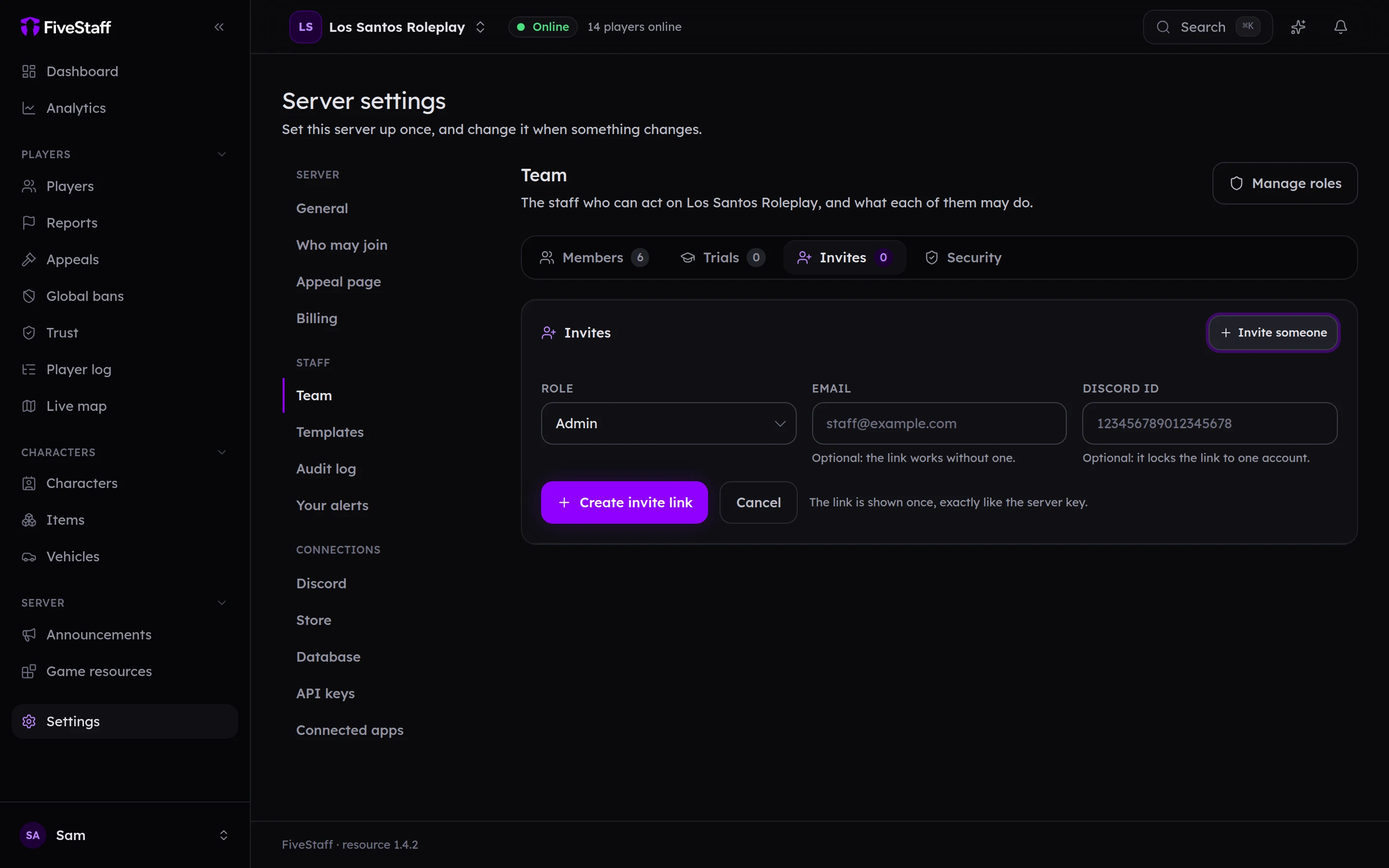
- Choose the Role they will have.
- Optionally add their Email (we send them the invite) or their Discord id (the link then only works for that Discord account).
- Press Create invite link, then Copy link and send it to them.
The link is shown once, works once and expires after seven days. If you lose it, revoke the invite and create another.
When they open the link, they sign in with Discord and press Accept invitation. They are on your team straight away.
Or let Discord add them#
If your staff already have roles in your Discord server, FiveStaff can give them a seat automatically. Give someone your Discord Moderator role and they become a Moderator in FiveStaff. Take it away and they lose their seat. Set this up on the next page, Connect Discord.
How many staff you can have#
The Free plan has room for 3 staff, including you. Pro has no staff limit. An invite that has not been accepted yet holds a place, so revoke any you no longer need. See plans and billing.
Require two-step verification#
For a team that can ban players, we recommend requiring two-step verification. Turn it on for your own account first, then go to Settings → Team → Security and press Require it. Staff without it keep their place but cannot do anything until they set it up.