
Roles and permissions
Every member of staff has one role, and each role is a set of permissions you choose. What each permission allows, and how to set roles up well.
Each member of your team has one role, and a role is a named set of permissions. You can make as many roles as you like. The server owner has every permission and needs no role.
Open Settings → Team and press Manage roles.
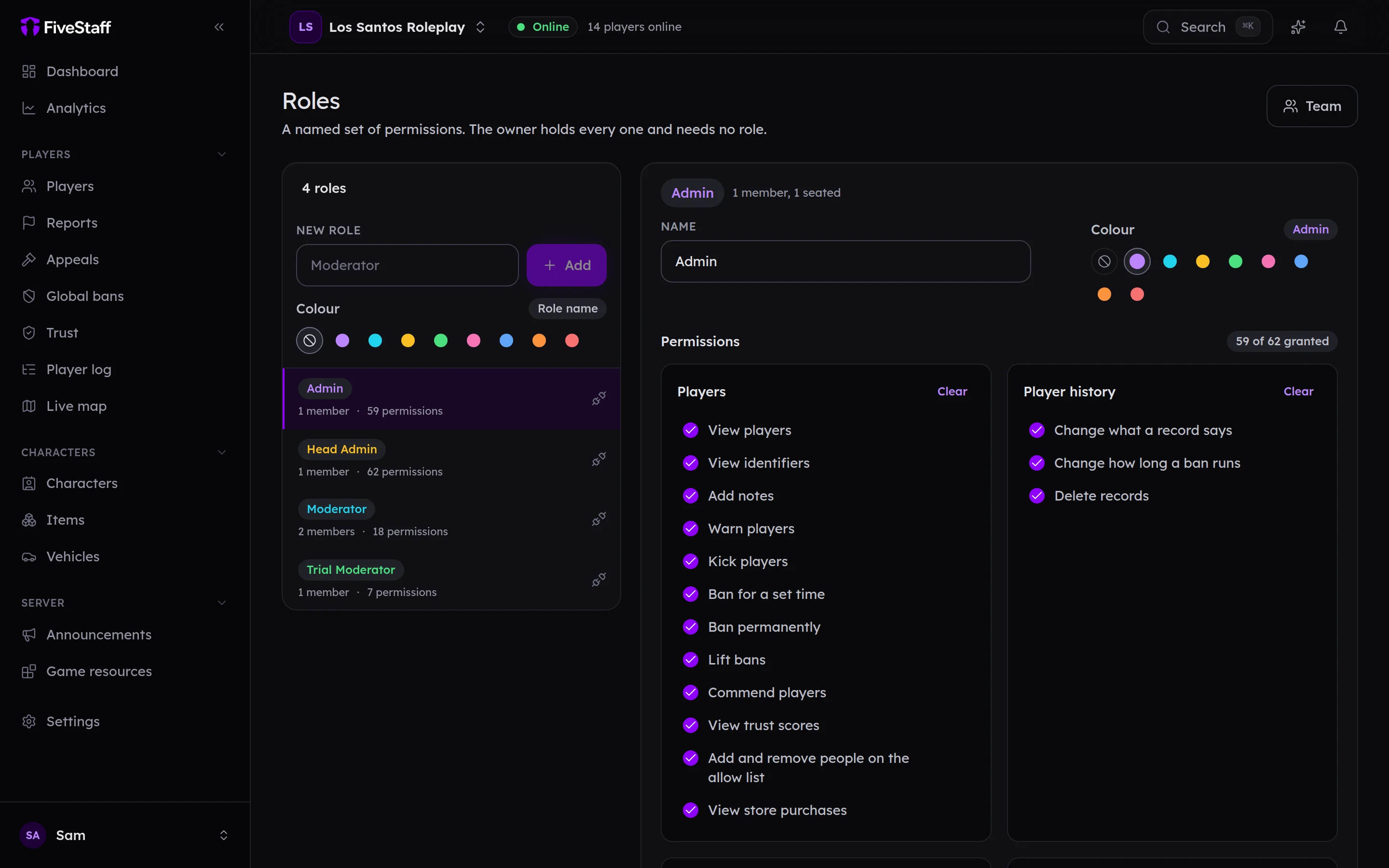
Creating and changing roles#
- Type a name into New role, choose a colour and press Add.
- Press a role to edit its Name, Colour and Permissions. Each group of permissions has Select all and Clear.
- Duplicate copies a role, which is the quickest way to make a "senior" version of one.
- Delete only works on a role nobody holds. Move its members to another role first.
- Press Save changes in the bar at the bottom. Leaving with unsaved changes asks first.
You can only give permissions you hold yourself, so a Head Admin cannot make a role more powerful than their own.
The colour is only for telling roles apart in the panel.
The permissions#
| Group | What it covers |
|---|---|
| Players | Seeing players and identifiers, adding notes, warning, kicking, temporary and permanent bans, lifting bans, commending, seeing trust scores, the allow list, store purchases |
| Player history | Changing what a record says, changing how long a ban runs, deleting records |
| Live actions | Freeze, heal and revive |
| Framework | Seeing characters, and editing inventories, money, vehicles, jobs and character details, and undoing edits |
| Game database | Seeing the game database settings, and changing the connection and the layout of an Other framework. Nobody is ever shown the database password |
| Reports | Seeing, claiming, assigning, closing, reopening and deleting reports, and stopping a player reporting |
| Live view and calls | Watching players, calling them, the live map and private messages |
| Announcements | Sending announcements |
| The game world | Time, weather, tidying the map and healing everybody |
| Game resources | Seeing what is running, and starting and stopping it |
| Appeals | Reading and deciding appeals |
| Bans | Importing bans and putting bans forward to the global list |
| Analytics | Server and staff analytics |
| Audit log and Player log | Reading them, and choosing what the player log collects |
| Team and Roles | Managing the team, running trials and managing roles |
| Server, Discord, Billing, API | Server settings, who may join, downloading the resource, the Discord connection, billing, the store and API keys |
A link in the sidebar is hidden when a role cannot use it, and the same goes for buttons on each screen. Staff never see a button that would only tell them "you cannot do that".
Tips for setting roles up#
- Start small. It is easier to give a trial moderator one more permission than to take back something they have used.
- Keep deletions for senior staff. Deleting records and reports cannot be undone, and nobody has those permissions until you give them.
- Split temporary and permanent bans. Let moderators ban for a set time and leave permanent bans to admins.
- Billing stays with you. Most owners keep billing and server settings for themselves.
- Think before giving out the resource download. Downloading the resource issues a new server key, and the old one stops working the next time your game server restarts. Give it only to whoever installs updates on your game server.
Giving roles#
Roles are given through invites, Discord role sync, or by changing a member's role on the Members tab of Settings → Team.