
Install the resource
Download the FiveStaff resource from the panel, add it to your FiveM server and start it. Your server key is already inside.
On this page
The FiveStaff resource is what connects your game server to the panel. It enforces bans, sends reports, shows warnings and announcements to players, and lets your staff act on players from the panel, the app and Discord.
Before you start#
- You need to be able to upload files to your server's
resourcesfolder and editserver.cfg. This is the same access you use to install any other resource. - Your server should run a recent FiveM server build. If you have not updated your server artifacts this year, update them first.
- FiveStaff works with QBCore, Qbox, ESX, vRP and TMC, and on standalone servers. It finds your framework by itself. No other resources are needed.
Download it#
- Open your server's Dashboard in the panel.
- Press Download the resource. Your browser saves
fivestaff.zip. - Unzip it. Inside is one folder called
fivestaff.
The folder already contains your server key in config.lua, so there is nothing to fill in.
Install it#
-
Upload the
fivestafffolder into your server'sresourcesfolder. Keep the folder name exactlyfivestaff. -
Open
server.cfgand add these lines, anywhere after your framework starts:ensure fivestaff add_ace resource.fivestaff command.restart allow add_ace resource.fivestaff command.start allow add_ace resource.fivestaff command.stop allow -
Restart your server, or type
ensure fivestaffin the server console.
The three add_ace lines let FiveStaff restart itself when an update needs it, and let your staff start and stop resources from the Game resources screen. Server config and permissions explains them in full.
Check it worked#
Go back to the dashboard. Within a few seconds of the resource starting:
- The status at the top of the panel changes to Online, with the number of players on.
- The Connection card shows your framework and the resource's version.
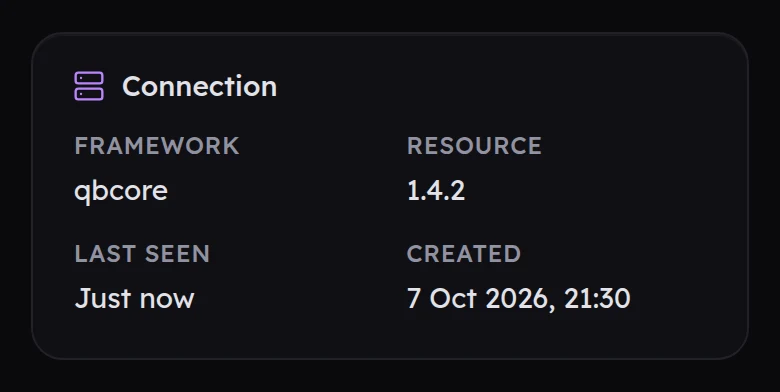
If it still says Offline after a minute, look at your server console. FiveStaff prints one line saying what is wrong:
| The console says | What to do |
|---|---|
| no server key is set | config.lua is missing its key. Use the config.lua from your latest download. |
| the key must begin with "fss_" | The key was pasted wrong. Copy it again, with nothing before or after it. |
| the panel refused this server key | The key has been replaced, usually by downloading again. Use the config.lua from the latest download, or press Regenerate key and paste the new one in. |
There is more help in troubleshooting.
Updates#
You never need to download FiveStaff again to update it. The resource keeps itself up to date and restarts itself when an update needs it, as long as the three add_ace lines are in place.
Next step#
Read server config and permissions, or skip ahead and invite your team.