
Reports
How players report each other in game, and how your staff claim, investigate and close reports with everything that happened before them.
On this page
Players report each other in game with /report. Each report arrives in the panel within seconds, with a screenshot from the reporter's screen and a record of what both players were doing beforehand.
What the player does#
The player types /report, picks who they are reporting from the people online and says what happened. They can add a link to a clip as well.
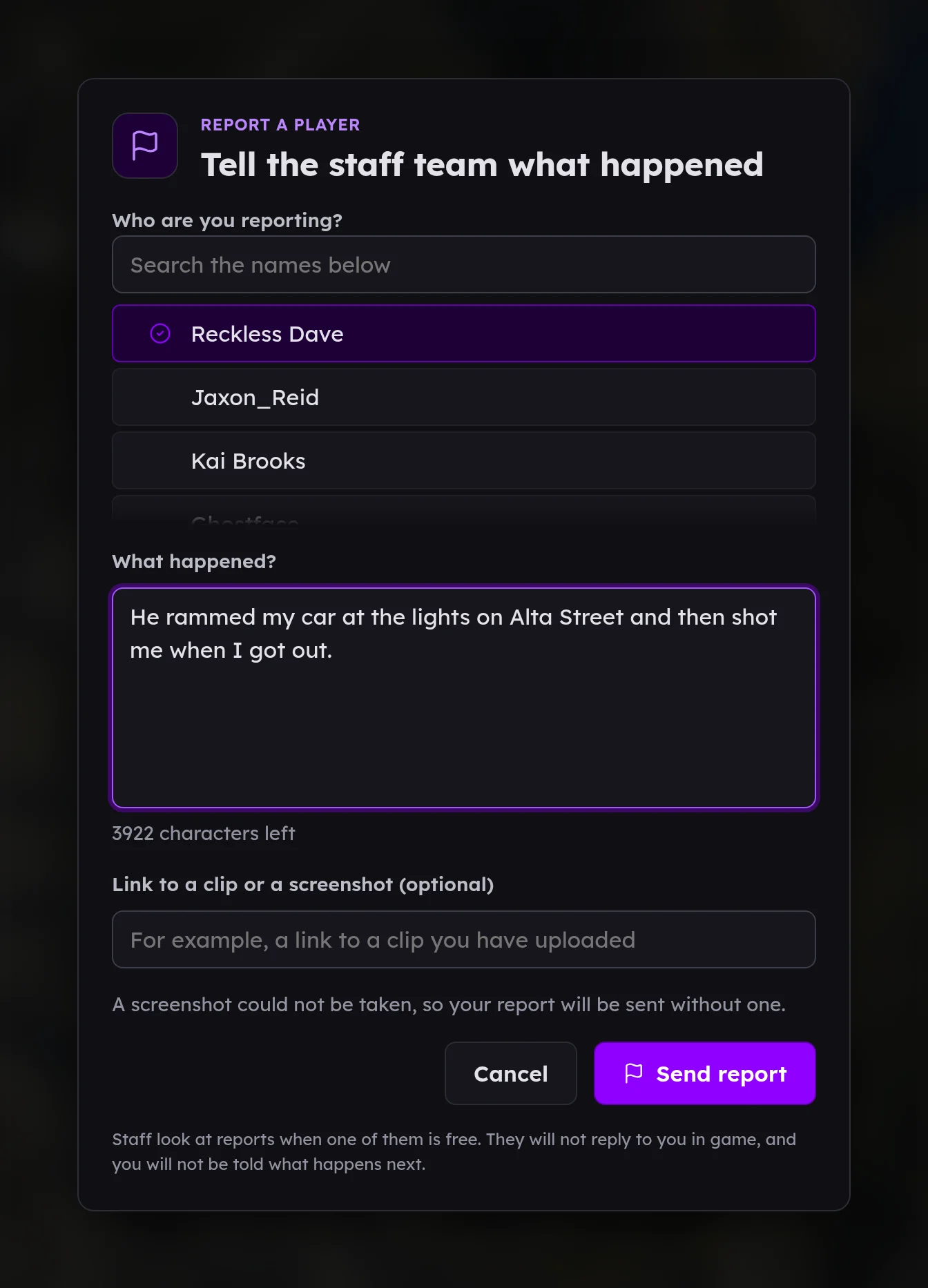
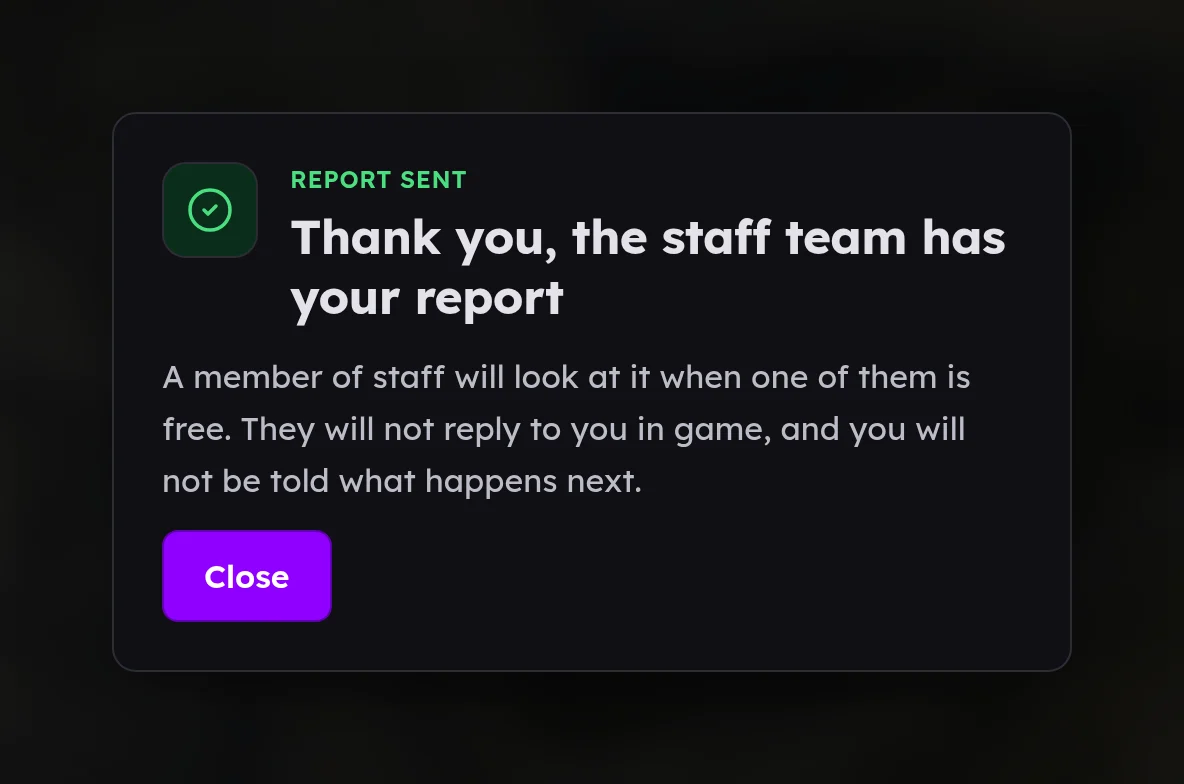
FiveStaff takes a screenshot of the reporter's screen as they send it. They are told the staff team has the report, and that nobody will reply to them in game. A player can send one report every two minutes.
The queue#
Reports lists every report, with the ones still waiting oldest first. It updates by itself as reports come in.
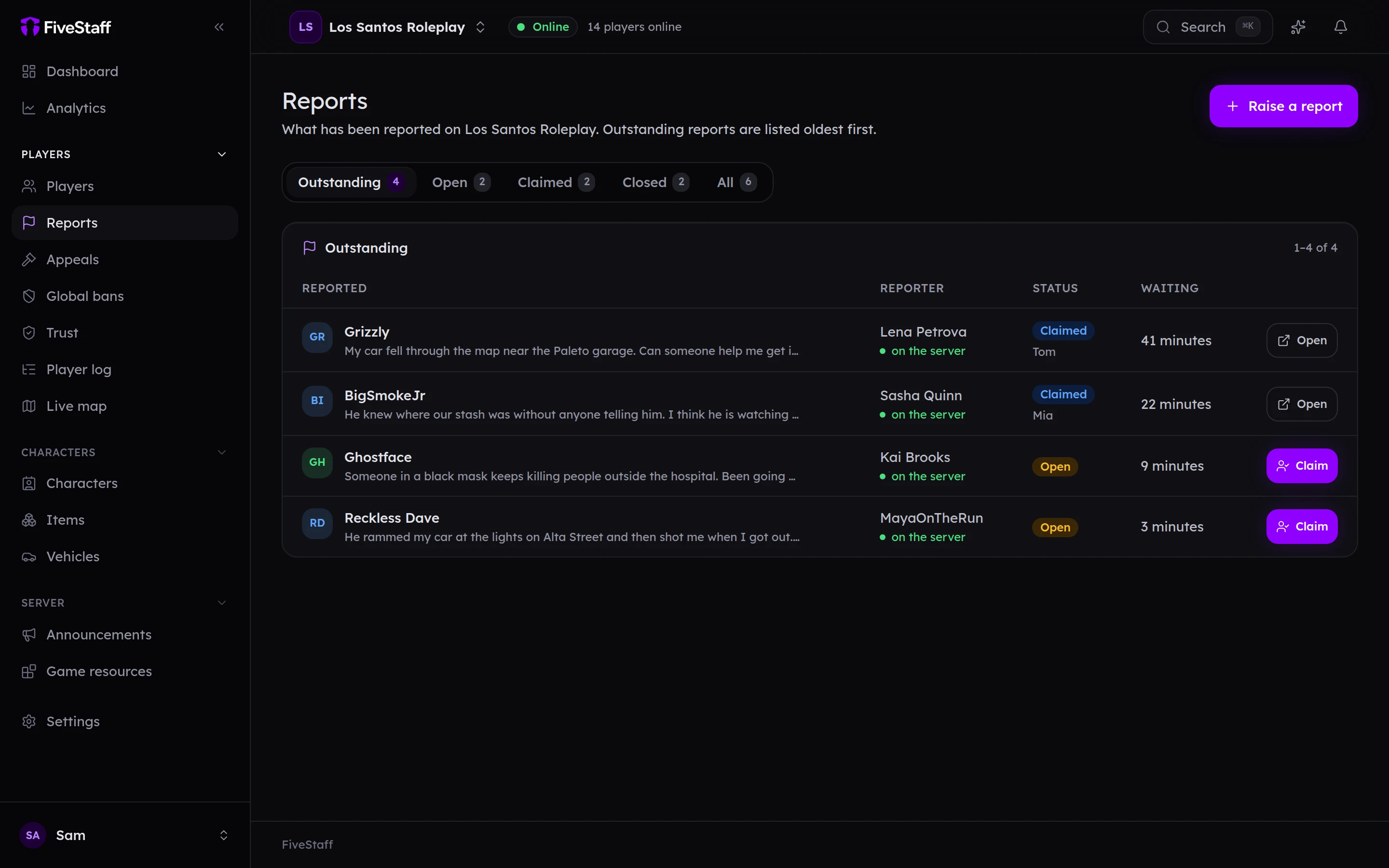
The tabs filter the list: Outstanding (open and claimed), Open, Claimed, Closed and All.
Press Claim to take a report. Everybody can see who claimed it, so two staff do not end up in the same sit.
Handling a report#
Open a report to see everything about it.
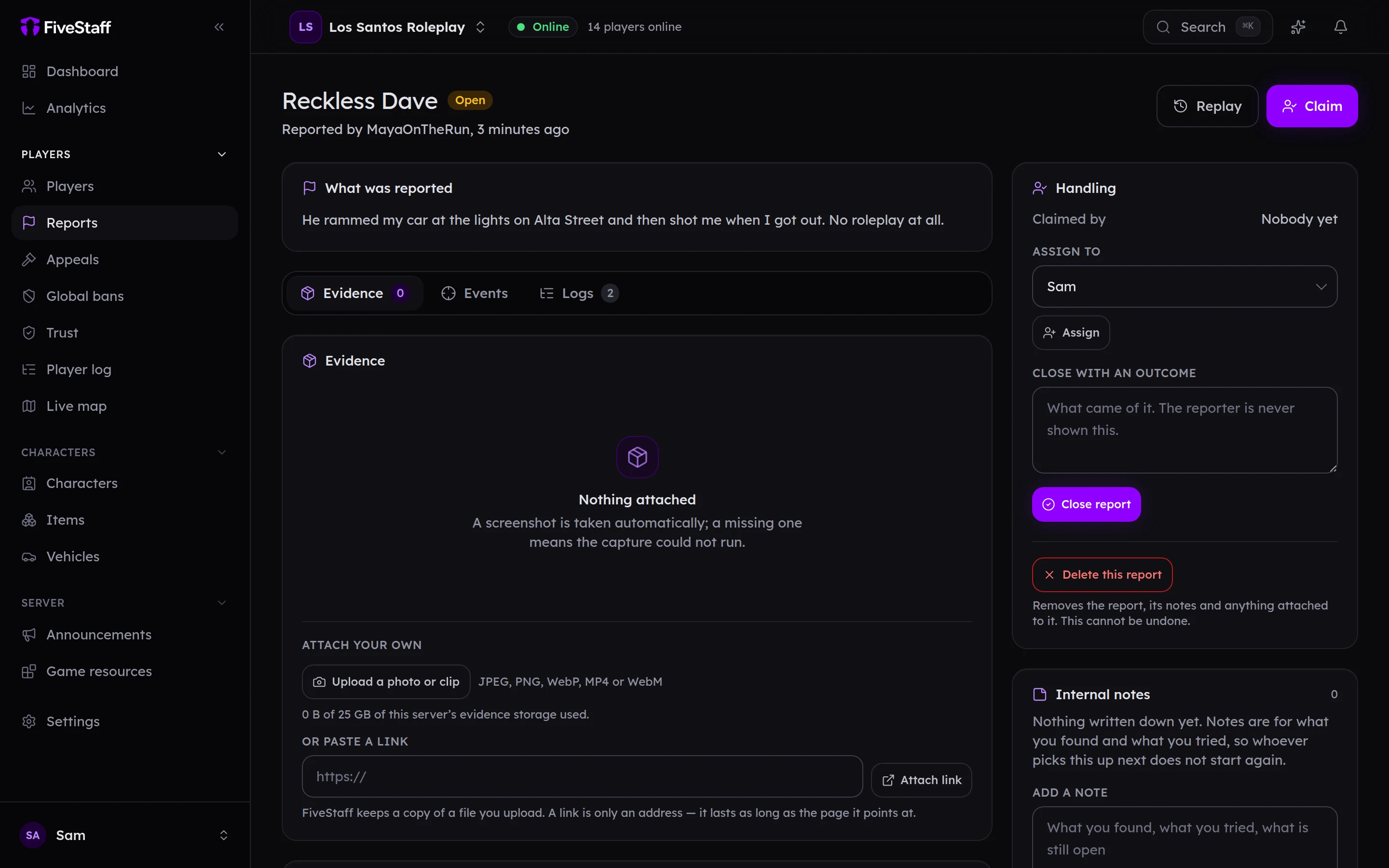
- What was reported: the player's own words, and any link they gave.
- Evidence: the automatic screenshot, plus anything your staff attach. Press Upload a photo or clip (JPEG, PNG, WebP, MP4 or WebM) or paste a link.
- Events: shots, hits, deaths and crashes involving either player in the 15 minutes before the report.
- Logs: what the reported player did in the 10 minutes before, from the player log.
- Replay, at the top of the page: where the reported player was in the minutes before the report, on the map. It is offered for about an hour after the report, while the movement is still kept. See replay.
Events and Logs are saved with the report, so they are still there long after the rest of the log has gone.
Acting on it#
The Take action card on the report acts on either the reported player or the reporter: add a note, commend, warn, kick or ban. See warnings, kicks and bans.
Notes for your team#
Internal notes are for your staff only. The players involved never see them. Notes cannot be edited afterwards.
Closing it#
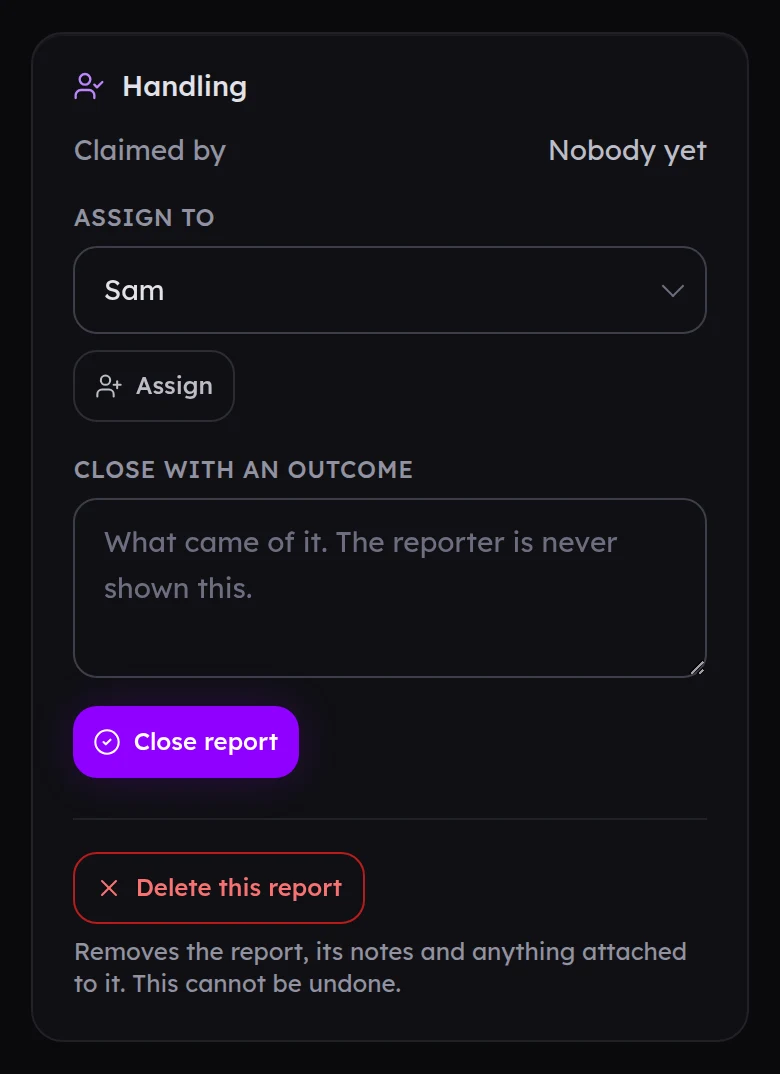
- Assign to: hand the report to another member of staff.
- Close with an outcome: say what came of it, then Close report. The reporter is never shown the outcome.
- Reopen with a reason: puts a closed report back in the queue, unclaimed.
Raising a report yourself#
Staff can raise a report from the panel too, about any player, online or not. Press Raise a report on the Reports page. It joins the queue like any other, with your name on it.
Players who misuse /report#
If a player keeps sending reports that waste your team's time, open one of their reports and use Stop this player reporting in the Players card. Give a reason and, if you like, when it ends. They cannot use /report until it ends or somebody presses Lift restriction.
Evidence storage#
Each server has room for evidence files. The Free plan allows 25 MB per file and 1 GB in total; Pro allows 100 MB per file and 25 GB in total. The report page shows how much is used. Deleting old reports frees space.