
Add your server
Create your server in the FiveStaff panel. It takes a name, an optional logo and a choice of plan, and gives you the key the game server connects with.
On this page
Each game server you run is its own server in FiveStaff, with its own players, staff team, settings and plan. Adding one takes a minute.
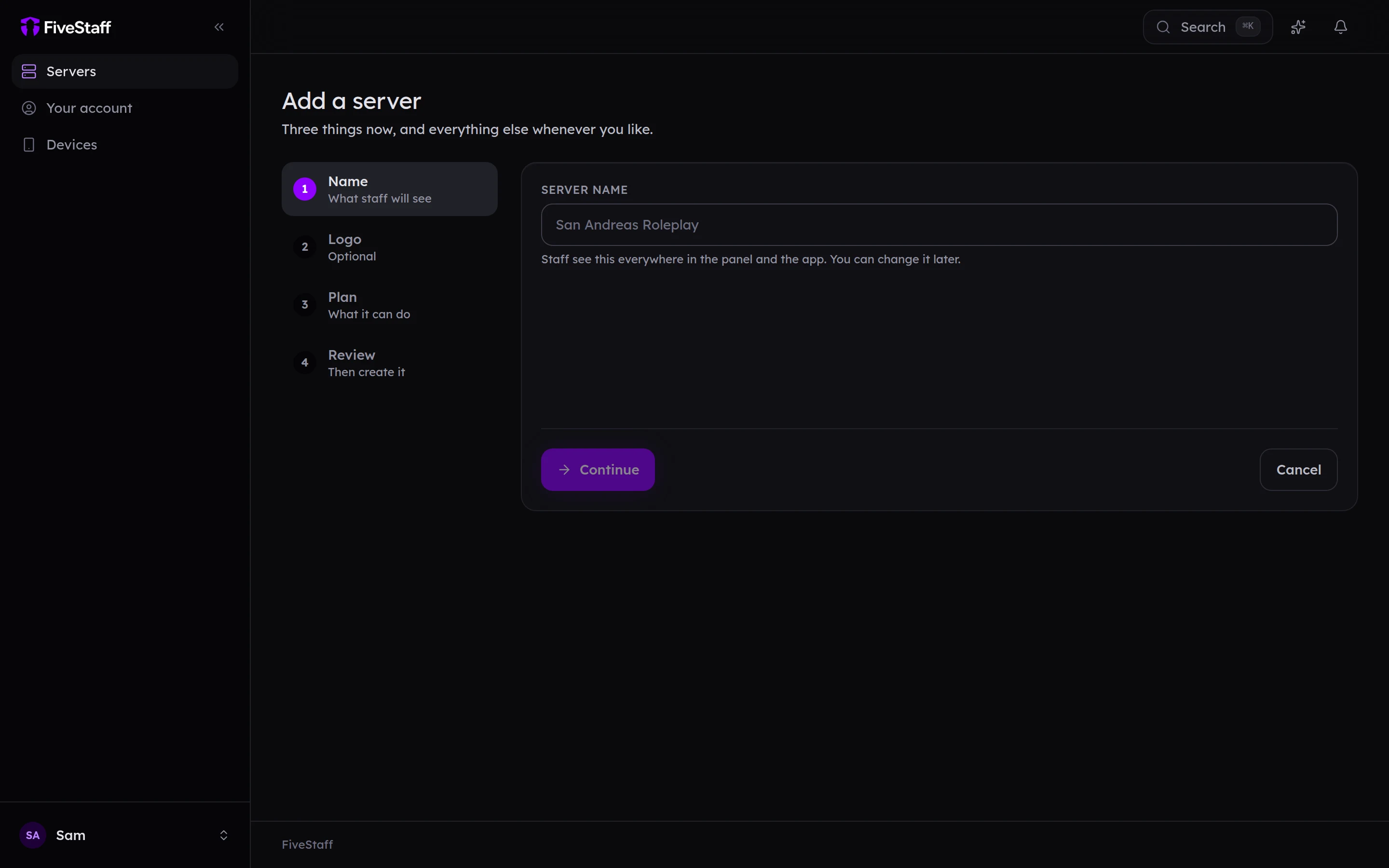
- On Servers, press Create your first server (or Add server if you already have one).
- Name. Type your server's name, the way you want staff to see it. You can change it later.
- Logo. Optional. Choose a PNG, JPEG, WebP or GIF (a GIF stays animated). Without one, your server shows its initials.
- Plan. Choose Free or Pro. See plans and billing for what each includes.
- Review. Check the details and press Create server.
You land on your new server's dashboard.
Your server key#
The first time the dashboard opens, it shows your server key. This is the password your game server uses to connect to FiveStaff.

You do not need to copy it if you are about to install the resource. The download on the next page already has a key in it. Keep it somewhere safe if you are setting up by hand.
Next step#
Install the FiveStaff resource on your game server.